

Table of Contents
Manual Camera Configuration
Use this guide to assign a camera IP address, choose recording and analytics settings, or preserve a custom configuration. Your TetherBox can configure supported Cameras automatically; manual changes are useful when a site needs different image detail, bandwidth or analytics settings.
The available controls depend on the camera's API support and your account permissions. See Automatic Configuration for an overview of automatic setup.
Choose Where to Change Settings
Go to Admin → Cameras and select your camera.
| Task | Where to Find It |
|---|---|
| Assign a static IP | API → Settings → Network, on supported cameras. |
| Check the streams received by TetherBox | API → Streams, showing recording and analytics media information. |
| Edit video or audio encoder settings | Use API → Settings with camera configuration access; otherwise use the camera's own interface through tunnelling. |
| Edit picture controls | Use API → Settings with camera configuration access, where supported; otherwise use the camera's own interface. |
| Keep custom encoder settings | Advanced Settings on the camera's main page → Disable Defaults. |
Admins, integrators and staff can edit supported encoder and picture settings on cameras they can manage.
Before customising stream settings, enable Disable Defaults so an automatic defaults push does not overwrite them. This setting belongs to the underlying device: on an NVR or DVR it applies to the shared recorder, including its other camera channels.
- Keep custom settings: On the camera's main page, find Advanced Settings and enable Disable Defaults.
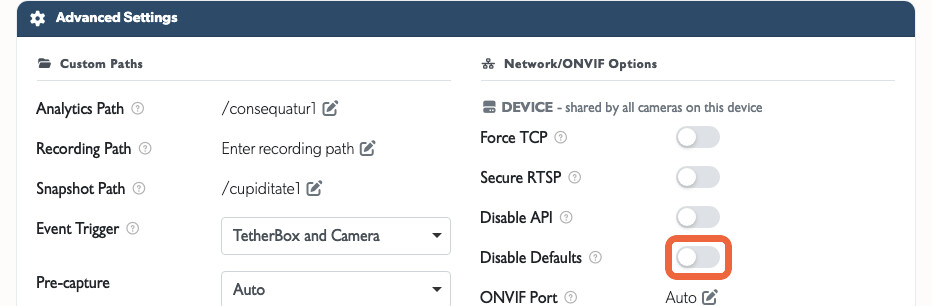
Warning: Explicitly applying defaults can replace custom encoder settings even when Disable Defaults is enabled. Record your custom values before applying defaults. Disabling defaults does not disable camera time synchronisation.
Network Settings
Static IP
Auto-Assign from TetherX
You can auto-assign a free static IP address to a supported camera directly from its page in TetherX. The Network section appears when the camera has a working native API connection; the camera must also support changing its network settings remotely.
- Go to Admin → Cameras and select your camera.
- Open the API tab, then Settings.
- Find the Network section and click Auto-Assign. Your TetherBox selects a free address on the private
192.168.88.xnetwork and applies it to the camera.
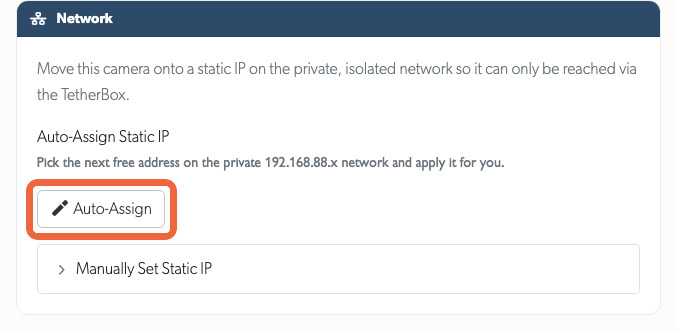
- After Static IP Applied appears, allow up to two minutes for the camera to reconnect.
Auto-Assign is disabled if the camera already has an address on the 192.168.88.x or 192.168.90.x private network. If the Network section is missing, check the camera's native API connection. If the camera cannot apply the change, use its own interface or manufacturer utility.
To choose an address yourself, expand Manually Set Static IP, enter your settings and click Apply.
| Field Left Blank | Behaviour |
|---|---|
| IP address | TetherBox chooses a free address. |
| Netmask | Uses 255.255.255.0. |
| Gateway | Uses the TetherBox address on the chosen network. |
| DNS | Defaults vary by manufacturer. Enter explicit servers when your site requires them. |
Configure through the Camera Interface
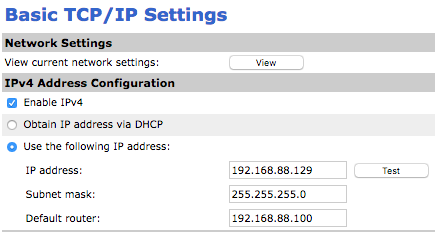
To configure a static IP through the camera's own interface, use:
- IP Address: A unique, unused address on the camera network, such as
192.168.88.x. - Netmask:
255.255.255.0for that network. - Gateway: The TetherBox address on that network, commonly
192.168.88.100. - DNS: The server appropriate to your site's network, if the camera needs name resolution.
Warning: Avoid 192.168.88.100 - this is reserved for your TetherBox. Multiple cameras sharing the same IP will cause connection failures.
DHCP
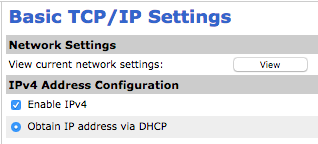
To use DHCP, set your camera to obtain an IP address automatically from your network's DHCP server.
Recording Stream (Primary)
The recording stream supplies playback and cloud backup video. H.264 is the default codec. Choose settings to suit the required detail, storage and upload bandwidth.
The current automatic defaults use the following policy, subject to the camera's advertised options:
| Setting | Automatic Default |
|---|---|
| Resolution | Largest suitable supported resolution, preferring 16:9 and respecting the cloud package resolution limit where possible. |
| Frame rate | Highest supported rate up to 30 FPS; 20 FPS when the camera provides no frame-rate information. |
| GOP / I-frame interval | Equal to the chosen FPS, for roughly one keyframe per second. |
| H.264 profile | High, then Main, then Baseline, selecting only an advertised profile. |
| Bitrate control | Variable bitrate (VBR). |
Example automatic H.264 bitrate defaults:
| Resolution | Bitrate |
|---|---|
| 1280×720 | 2048 kbps |
| 1920×1080 | 2048 kbps |
| 2560×1440 | 3072 kbps |
| 3840×2160 | 4096 kbps |
Camera limits can change the values applied. Check that the resulting video preserves the detail your scene and AI features need.
For manual settings, inspect moving subjects rather than only a still image. Increase bitrate when compression removes useful detail. For H.265, check codec compatibility with the TetherBox and intended playback devices before changing it.
- Camera interface example: Names and available values vary by manufacturer.
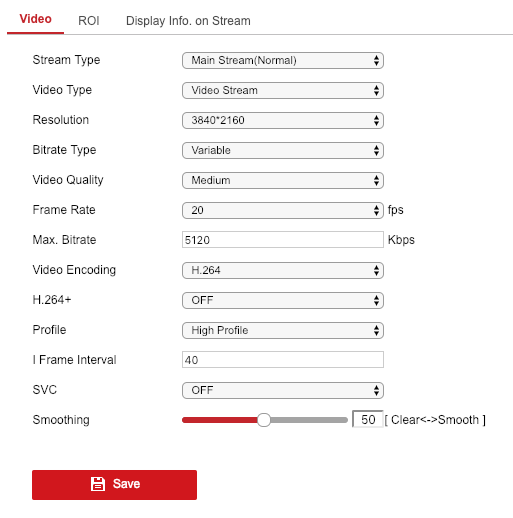
Tip: VBR lets the encoder use more bandwidth during movement. A low bitrate ceiling can still remove detail when someone enters the scene, even if the background looks clear.
Analytics Stream (Secondary)
Your TetherBox decodes the analytics stream locally. Choose enough resolution for your analytics: lowering it reduces CPU load and removes image detail.
Resolution for TetherBox AI
For TetherBox AI, use 720p or higher (approximately 1 megapixel) for common analytics. For analytics that need finer detail, such as facial recognition, plan for 5 megapixels or higher.
These are installation planning targets, not hard model acceptance thresholds. Camera positioning, lens, focus, lighting and the size of the subject in the image also affect results; see TetherBox AI Facial Recognition for capture and configuration guidance.
The main video detector and integrated facial recognition use the configured analytics stream. Its resolution must preserve the detail they need. Some optional analytics also use separate camera snapshots; check each feature's image source.
If the camera's secondary stream cannot provide enough detail, configure an appropriate higher-resolution analytics source. Check the camera's Advanced Settings stream paths and verify the received resolution under API → Streams. Allow for the extra decoding load and adjust bitrate and frame rate for the feature; the basic motion defaults below are not a universal AI preset.
Motion Detection Settings
The settings below are the defaults for motion detection. Higher-resolution AI analytics may need different resolution, bitrate and frame rate settings.
| Setting | Value |
|---|---|
| Codec | H.264 |
| Resolution | Largest suitable supported size up to about 1.2 MP, usually 720p where available; camera and cloud package limits also apply. |
| Frame rate | Up to 6 FPS, subject to the camera's available rates. |
| Bitrate | Resolution-based; 2048 kbps at 1280×720 in the current defaults. |
| Profile | Main (see Automatic Configuration for fallback profiles) |
| GOP | Equal to the chosen FPS, normally 6 frames. |
- Camera interface example: Choose values for your camera and analytics feature.
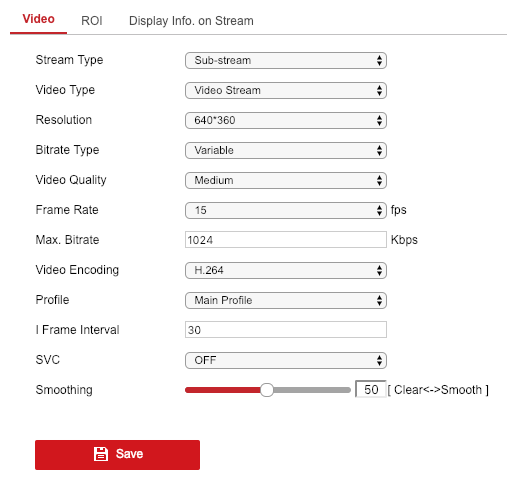
Warning: Higher analytics resolution increases decoding load and can reduce camera capacity. Allow for your AI features when sizing the TetherBox so the unit can process enough image detail.
Plan Decoding Capacity
Resolution, frame rate, codec, active analytics and the TetherBox hardware all affect capacity. Check the actual camera count and workload on the intended unit rather than relying on a fixed CPU multiplier for H.265 or a particular resolution.
Recording and analytics can use different streams, but may share a source if configured that way. Increasing a shared source's resolution or frame rate affects both uses. See CPU Recommendations for hardware guidance.
Tip: Some Dahua cameras offer a third stream that can provide a separate analytics source. Check the model's supported resolution and frame rate before choosing it.
Image Conditions
Set exposure and lighting for the subject you need to capture. There is no single WDR, gain or exposure value that suits every installation.
- Anti-flicker: Match the site's lighting frequency, usually 50 Hz or 60 Hz.
- BLC/WDR: Test moving subjects against bright backgrounds; check for ghosting and lost detail.
- Shutter, exposure and gain: Keep moving subjects sharp with enough light and acceptable noise. A bright still image can hide motion blur.
With camera configuration access, you can change supported picture controls under API → Settings, including brightness, contrast, sharpness, IR cut filter, focus and white balance. Use the camera's own interface for other settings. See TetherBox AI Facial Recognition for capture and lighting guidance.
Audio Recording (Optional)
The camera must include audio in the stream used for recording; enabling a microphone alone may not enable the stream's audio track. With camera configuration access, you can adjust supported audio encoders under API → Settings, or use the camera's own interface.
See Audio Recording for setup instructions including:
- Enabling audio on your camera
- Recommended encoding settings
- Disabling audio in TetherX when not required
- Legal considerations
Date and Time
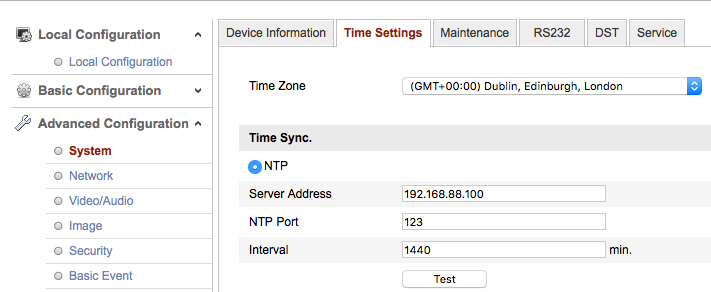
TetherBox synchronises camera clocks independently of encoder defaults. It uses NTP where supported and can fall back to a direct clock update, depending on the camera.
When configuring time manually:
- NTP server: Use the TetherBox address reachable from the camera, commonly
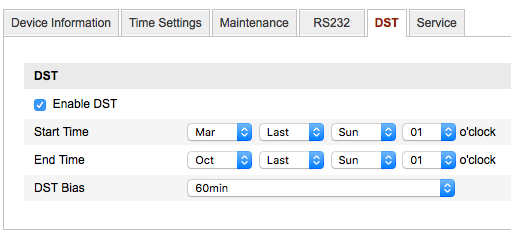
192.168.88.100on the default private network. Time zone and daylight saving: Set these for the installation's location and check the displayed time against a known clock.
Camera interface examples: Check the time zone and daylight saving controls for your model.
See TetherBox Time Synchronisation for time sources and troubleshooting. If a camera reports time synchronisation failure, check its API connection and reachable time source.
Vendor-Specific Guides
Some manufacturers require additional configuration steps:
- Dahua Setup - Three-stream configuration for optimal analytics
- Hanwha / Wisenet / Samsung Setup - Profile configuration for cameras, NVRs, and DVRs
- Hikvision Setup - RTSP URLs and remote firmware updates
- Mobotix Setup - ONVIF/RTP integration for classic Mobotix cameras
Related Articles
- Automatic Configuration - Let your TetherBox configure cameras automatically
- ONVIF - Enable ONVIF for automatic configuration support
- Camera Troubleshooting - Diagnose connection and recording issues
- Testing with VLC - Verify stream URLs before adding cameras
- TetherX AI - Configure on-device video and audio analytics
- TetherBox AI Facial Recognition - Plan facial detail, lighting and capture settings
Referenced in: