

Table of Contents
Mobotix Setup
Mobotix Move Range
The Mobotix Move range works out of the box without any additional configuration using our Dynacolor integration.
Tip: The Move range is based on Dynacolor hardware. See CCTV Forum discussion (opens in a new tab) for more details.
Other Mobotix Cameras
Classic Mobotix cameras require enabling RTSP/ONVIF integration before they can connect to TetherX.
Enable Integration Protocols
- Log in to your camera via its IP address using the credentials created during activation
Tip: Use our tunnelling feature if setting this up remotely.
- Navigate to Admin Menu → Camera Administration → Integration Protocols
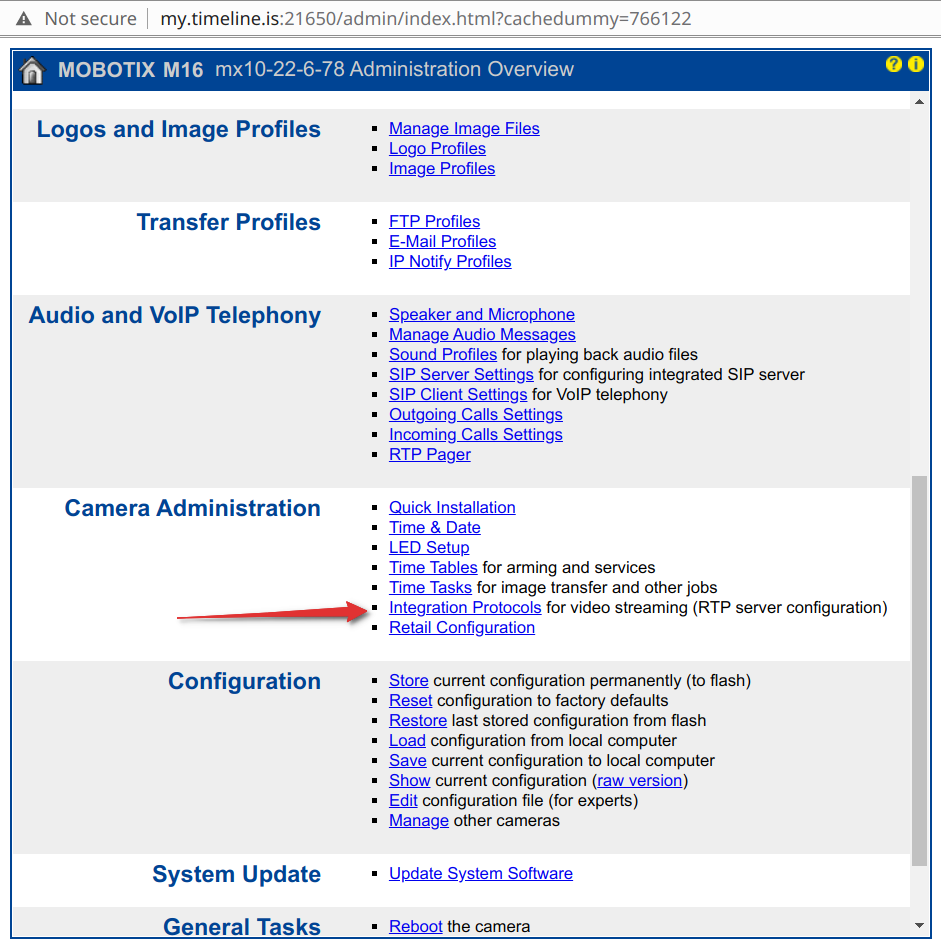
- Enable the RTP Server and ONVIF checkboxes, then click Set
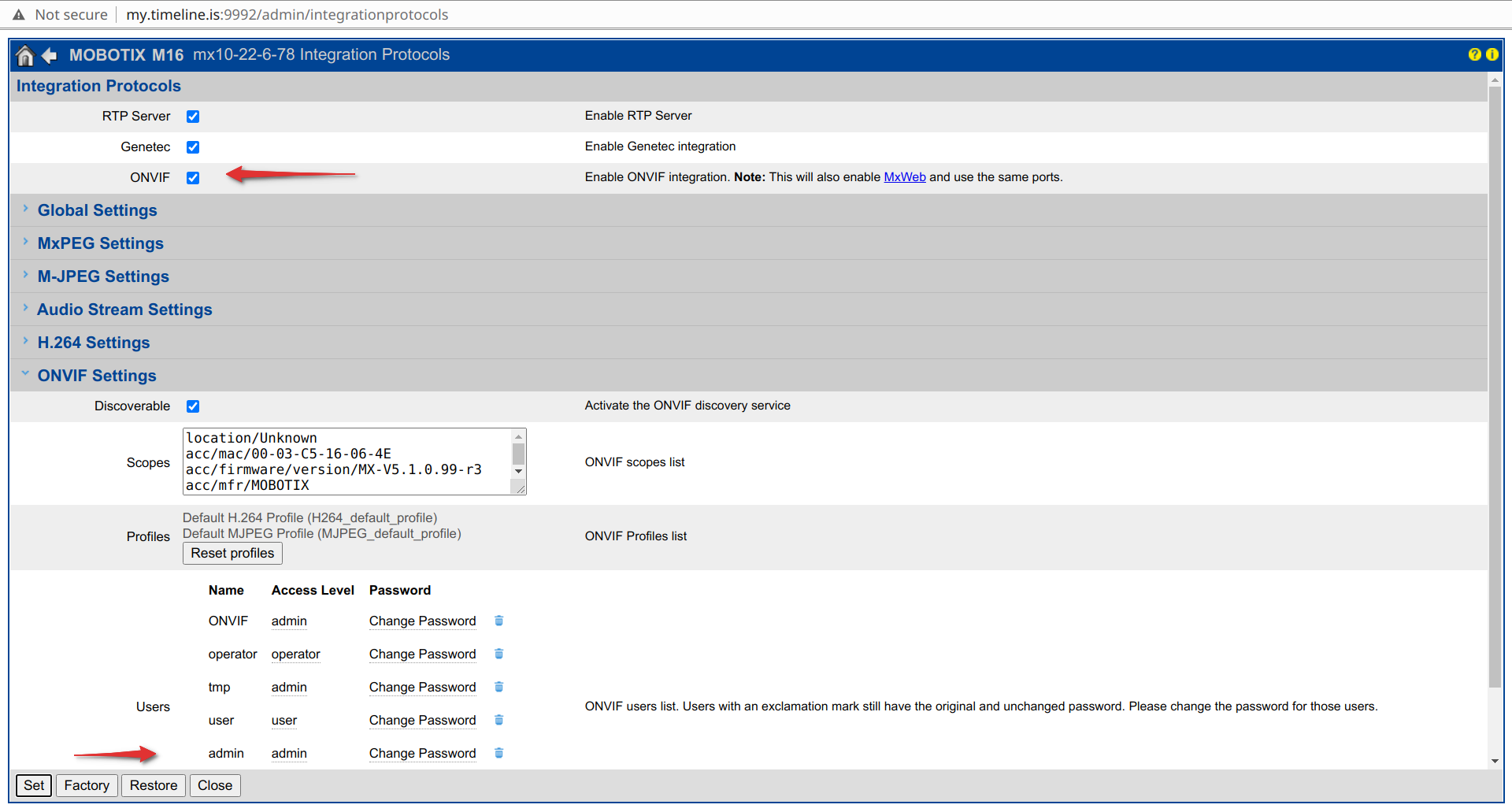
Create ONVIF User
- Create a dedicated ONVIF user in the ONVIF Settings section:
- Enter a username (e.g.,
tether) - Select Admin access level
- Enter a password
- Click Add User
- Click Set to save
- Enter a username (e.g.,
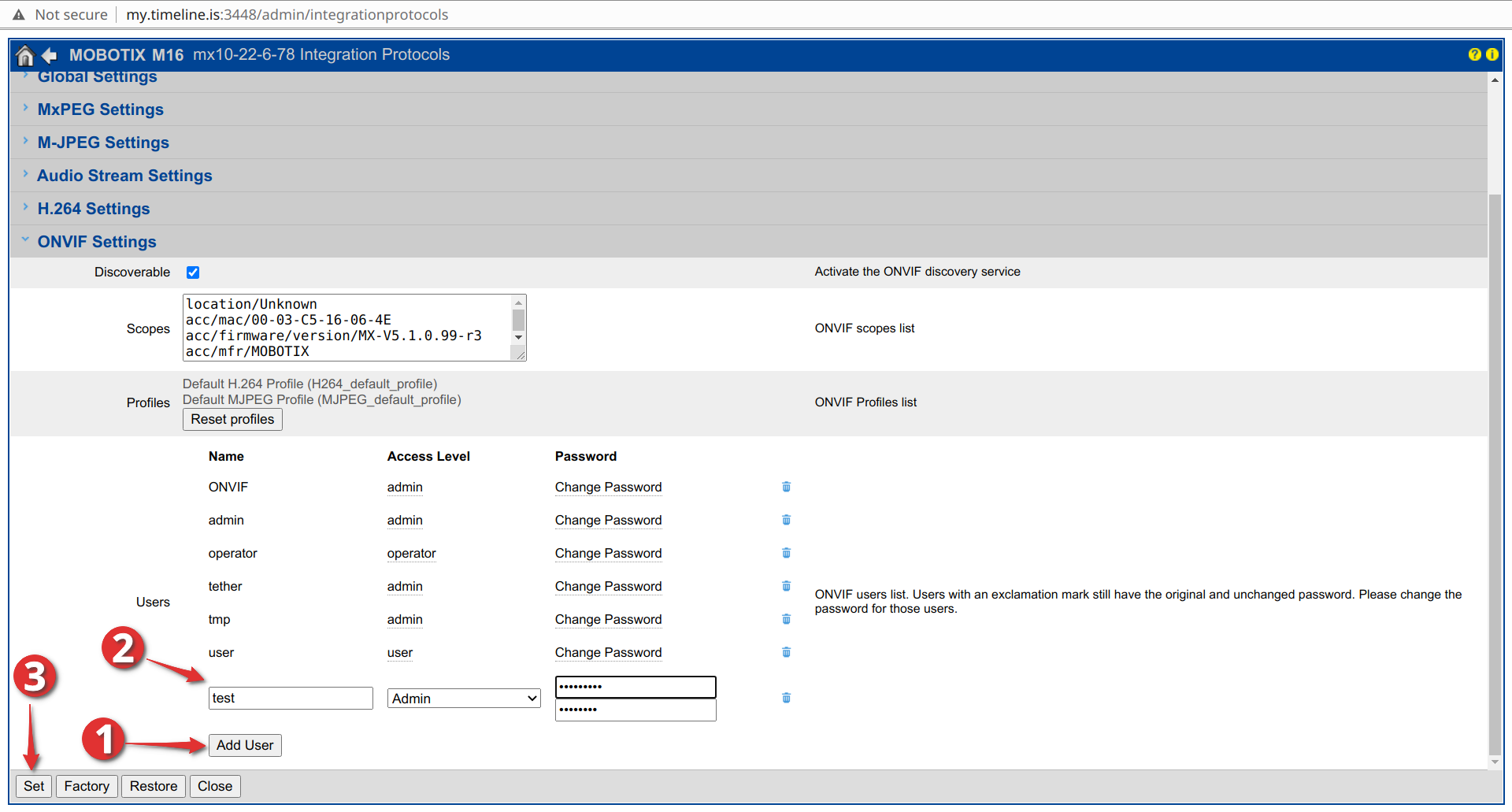
Warning: The ONVIF username and password must be different from any other user. The ONVIF user cannot be used to log in to the web interface.
Test the Stream
- Verify the stream works in VLC using this URL format:
rtsp://<username>:<password>@<ip_address>:554/mobotix.h264
Save Configuration
- Return to Admin Menu → Configuration → Store current configuration permanently
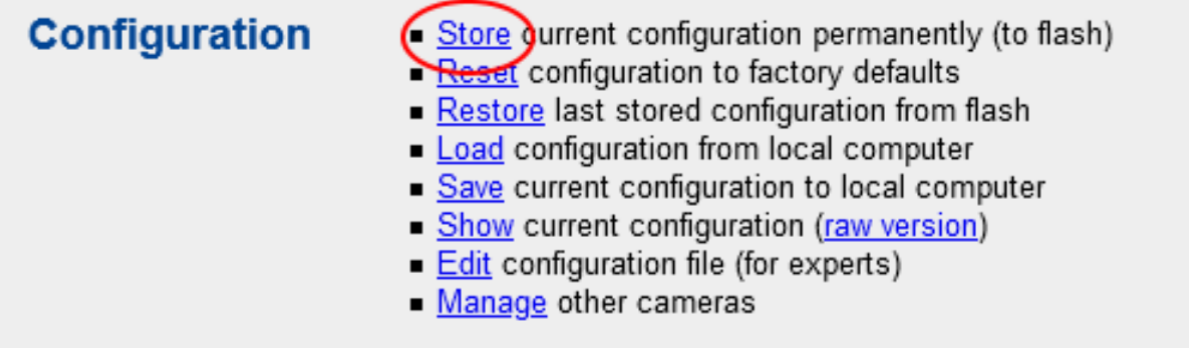
Warning: If you skip this step, all changes will be lost when the camera reboots and recording will stop working.
Configure TetherX
Mobotix cameras use a non-standard ONVIF port (8080) which must be configured in TetherX:

Open the Advanced tab
Set ONVIF Port to
8080
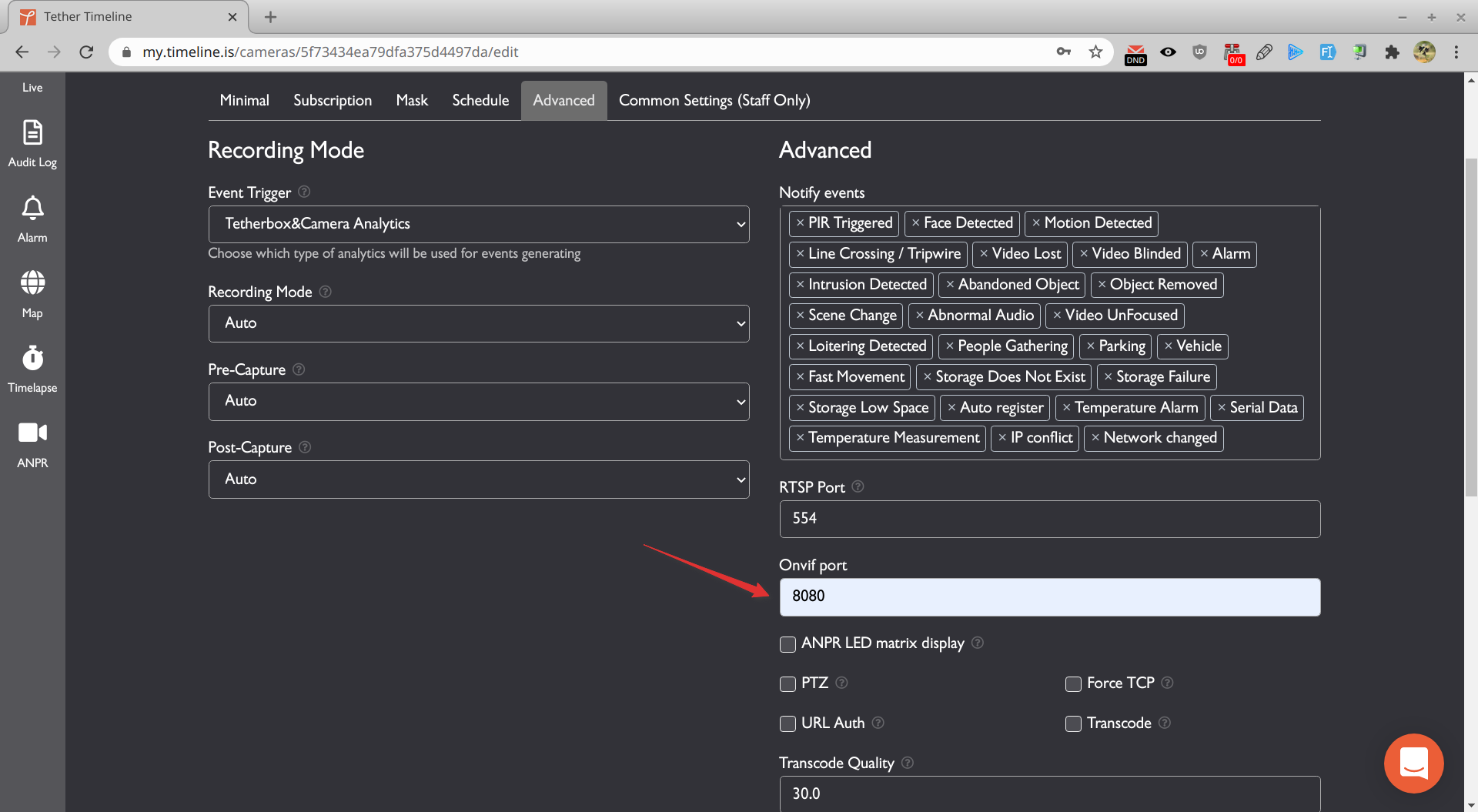
Click Update Camera
Verify events are being received

Referenced in: