

Table of Contents
Live View
Use Live View to watch cameras in a layout that suits your screen. You can save layouts as presets, share them with other users, and cycle through a group of presets automatically.
Open Live View
Click Live in the left sidebar. If you can access more than one timeline, choose one from the timeline dropdown at the top of the sidebar. Choose Timelines: All to see all cameras you can access.
To narrow the list, use the Site or TetherBox lists in the Live tab. Choosing a site also selects its timeline. Choose All to remove either filter.
For local access during an Internet outage, see Using the TetherBox Offline Interface. The offline camera wall offers layouts for up to 100 cameras and an Auto or Preview playback choice.
Arrange Cameras
Under Select Layout in the Live tab, choose a layout from one of three tabs:
- Normal suits a 16:9 monitor or laptop.
- Wide suits a 21:9 monitor or a phone held sideways.
- Tall suits a phone or tablet held upright.
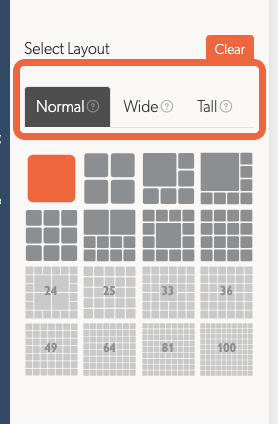
Layouts range from one to 100 tiles. Some give selected tiles more space, such as a six-tile layout with one large tile. Click Clear beside Select Layout to empty the tiles without changing the layout.
Choose the Fullscreen layout icon in the top bar to fill the display with the whole camera wall. The brand logo and Exit fullscreen button remain visible. You can still fullscreen an individual camera and return to the wall. Press Escape or select Exit fullscreen to return to the normal page.
Click the camera name at the top of a tile to choose a camera. The picker groups cameras by site and has a Filter cameras search box. Cameras that can pan and tilt are marked PTZ; those that support talkdown are marked TALK. If you chose Timelines: All, select a timeline before choosing a camera. The picker tells you when that timeline has no available cameras.
To swap two cameras, drag the grip beside one camera name onto a tile marked Swap.
Save and Share Presets
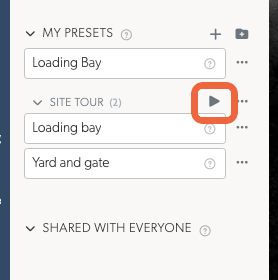
A preset saves the layout and the camera in each tile. Open the Presets tab to find your saved views:
- My presets are visible only to you.
- Shared with everyone are available to everyone on the timeline. Presets saved under Timelines: All cannot be shared because they belong to no single timeline.
Save a Preset
- Choose a layout and add cameras.
- Click the plus button beside My presets.
- Enter a name. Turn on Sharing if everyone on the timeline should be able to use it.
Click a preset to open it, or press 1 to 9 to open the first nine presets in the list.
If you change an open preset, a disk button appears on its row. Click it to save the changes. A camera image's zoom and position are saved only if you adjusted them yourself; otherwise Fit or Fill remains automatic.
Choose a Default or Start with an Empty Wall
Open a preset's ... menu and choose Set default to open Live View with that preset. A star marks it. Your first saved preset becomes the default automatically.
To start Live View without starting any cameras, make an empty preset your default:
- In the Live tab, click Clear beside Select Layout.
- In Presets, click the plus beside My presets and save the empty layout.
- Open its ... menu and choose Set default.
You can add cameras as needed. Opening another preset or choosing a site or TetherBox still opens its cameras.
Manage Presets
Right-click a preset, or open its ... menu, to:
- Update or Go back to the saved version when the open wall has changed.
- Duplicate it, including a shared preset made by someone else.
- Edit preset to change its name, description or sharing setting.
- Set default, Share with everyone, Make private or Delete it. Deletion asks for confirmation.
Tip: A search box appears once you have more than five presets. Names based on a site or task make them easier to find.
Organise Presets into Groups
Click the folder button beside My presets to add a group. The number beside the group name shows how many presets it contains.
- Drag a preset into a group to file it there, or into the other list to change who can see it.
- Drag a group into the other list to move it and its presets between private and shared views.
- Click a group name to collapse or expand it. Live View remembers your choice.
- Right-click a group, or open its ... menu, to Rename it or Delete group.
Deleting a group keeps its presets. They return to the top of the same list.
Cycle Through Presets
To rotate between saved views, put at least two presets in a group and click its play button. Live View shows each preset in list order, then starts again. Click the button again to stop. Starting another group's cycle stops the current one.
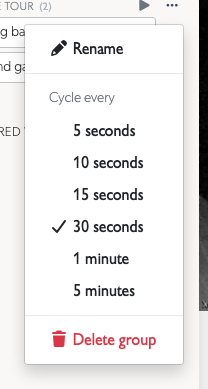
To set the interval, open the group's ... menu and choose Cycle every: 5, 10, 15 or 30 seconds, 1 minute, or 5 minutes. Changes take effect immediately. Your browser remembers the active group and interval when you return to Live View.
To keep a key camera visible while the other tiles change, use the same layout in each preset and put that camera in the same tile. Live View keeps a camera running when the next preset leaves it in place. You can also place a fixed view beside a cycling view in separate browser windows or split-view panes.
Set Video Quality and Scaling
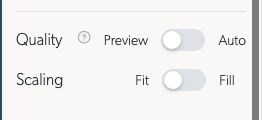
The Live tab has two settings beneath the camera lists:
- Quality: Auto selects a video stream automatically. Preview uses one image per second and the least bandwidth.
- Scaling: Fit shows the whole frame, with space around it if needed. Fill fills the tile and crops the edges.
To change one camera's quality, click the cog beside its name. Choose Auto, Primary (HQ), Secondary (LQ) or Preview.
When available, the same menu offers Video transport: WebRTC for lower-delay video or LL-HLS for buffered video. Live View remembers your choice and switches to LL-HLS if WebRTC cannot connect. Preview hides these choices.
Tip: If every camera stutters, try Preview. If only one does, check that camera's bitrate against the site's upload speed.
Use Camera Tiles
Hover over a tile to show its fullscreen, snapshot, zoom, reset and mute controls. Tiles start muted in the wall and unmuted in fullscreen. Fullscreen also offers HD/SD and, when supported by the browser and stream, Picture in Picture.
On a phone or tablet, tap a tile to show or hide its controls. Pinch to zoom and drag to move around the zoomed image. Double tap to enter fullscreen; double tap again or use close to return to the wall. Choosing a layout or preset closes the sidebar. If you leave and return to Live View, it opens the wall's starting view rather than the unsaved arrangement you left on screen.
The dot beside a camera name shows whether it is online. Timing values show picture delay for LL-HLS and Preview, or network round-trip time (RTT) for WebRTC. Hover over a value for its meaning. A red timestamp indicates a stale or stopped picture.
Local Streaming
When your device is on the same network as a TetherBox, Live View can stream directly from it to reduce delay. The indicator in the top menu bar shows the connection:
- Blue: local streaming on the TetherBox's network.
- Orange: a direct connection to the TetherBox over the Internet.
See Local Streaming for network requirements and troubleshooting.
Control a Camera
Pan, Tilt and Zoom
For a camera that supports pan, tilt and zoom, use the PTZ panel in its tile. Click the chevron beside PTZ to expand or collapse it. Controls may start collapsed in smaller tiles.
Controls depend on the camera and your account's permissions. If their status is unknown, use the refresh icon beside PTZ to check them.
- Directional arrows move the camera. The centre button returns it home or starts its patrol.
- Zoom in and zoom out change the camera's zoom.
- Control speed adjusts how quickly it responds.
- Presets lists positions stored on the camera. Choose one to move there, or use the refresh icon to reload the list.
- Relays controls the camera's outputs, such as a light or gate.
- Autofocus focuses the image when the camera supports it.
On a phone, hold it upright to reach these controls. The TetherX app also offers PTZ, presets, relays and talkdown.
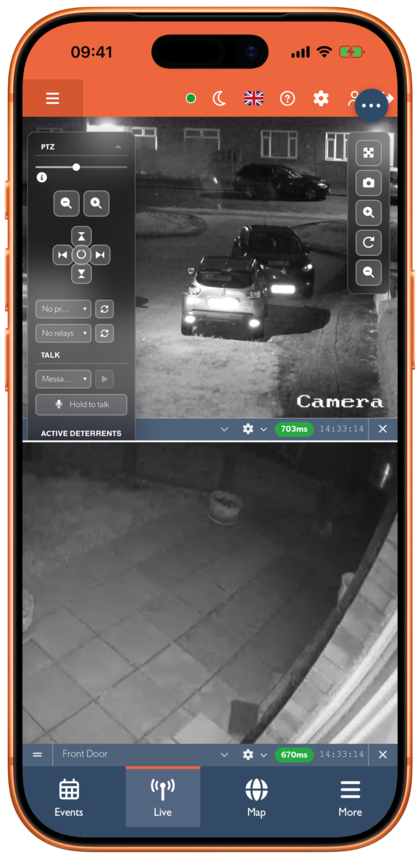
Save and Delete Camera PTZ Presets
Camera PTZ presets store positions on the camera. The presets in the sidebar save your Live View layout and camera selection separately.
Your account must have permission to use PTZ, the camera's TetherBox must be connected, and the camera must support presets. Some cameras can recall existing presets but refuse changes through their API.
- Hover over the camera tile, or tap it on a touchscreen, and expand PTZ.
- Use the camera's PTZ controls to frame the view you want to save.
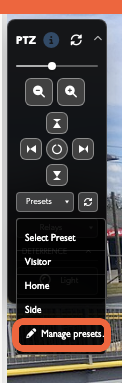
- Open Presets and choose Manage presets…. The window lists positions already saved on the camera, with a Delete control beside each name.
- Enter a Name in the inline form below the table and click Add preset. The camera saves its current position under that name. The existing positions stay visible while it saves; the list updates after acknowledgement, the button shows Saved, and the Name field is ready for another entry. Typing a new name restores Add preset.
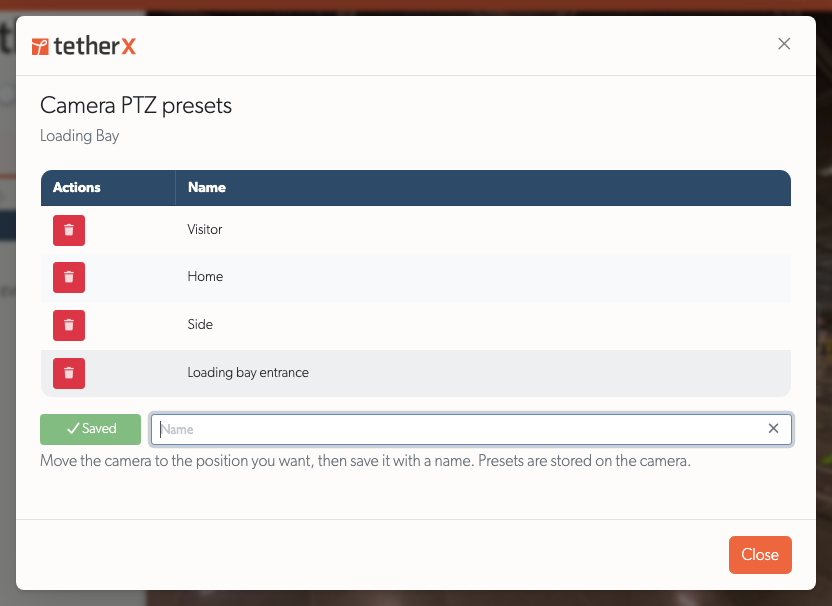 If the camera refuses a save, the same button shows Error and keeps your entered name. Select Error for details. Dismiss the details or edit the name to restore Add preset and retry.
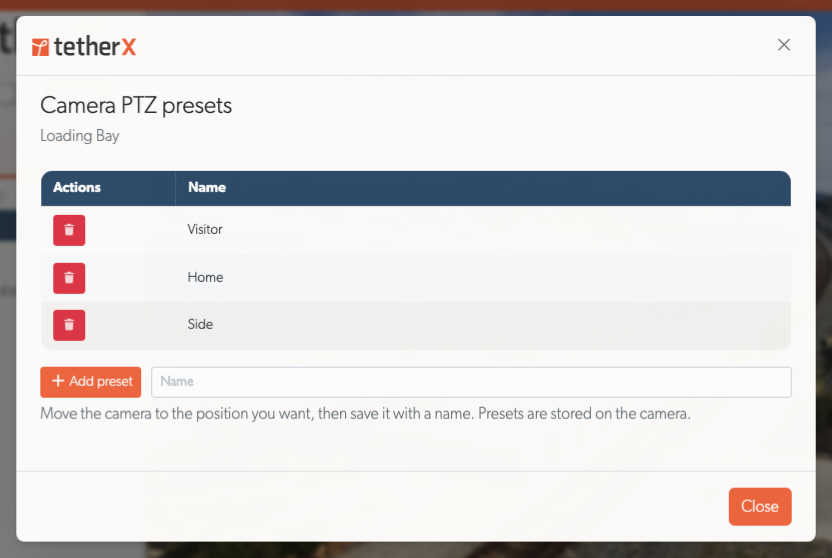
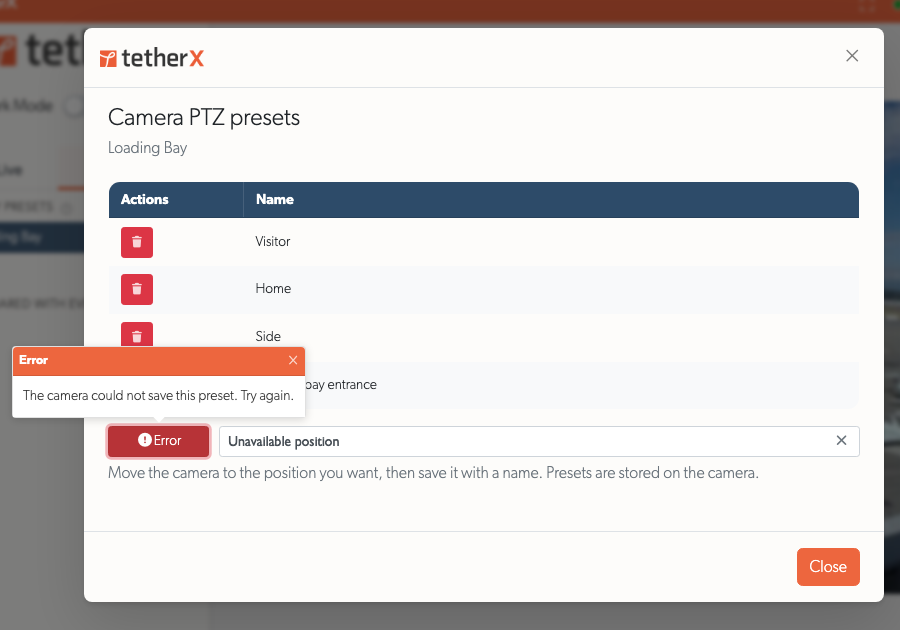
- Click Close to return to the tile. Choose the saved name from Presets to recall that position. The list refreshes after a save; its refresh icon also reloads positions changed through the camera's own interface.
To remove a position, open Manage presets…, click its trash button in the Actions column, then confirm Delete at the same control. Choose Cancel to keep it. The Delete button shows a loading indicator while the camera responds; after the camera acknowledges deletion, the row fades out. If the command fails, the row stays visible and the manager displays the error.
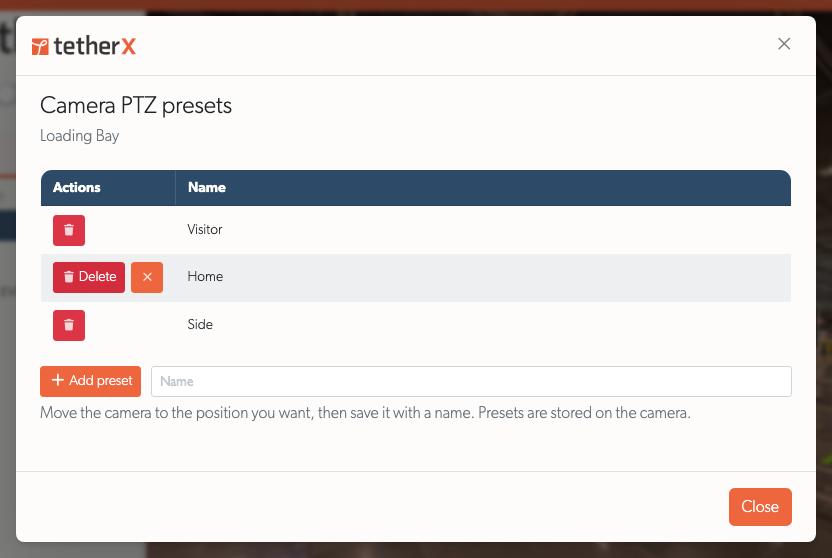
Deleting a camera preset removes that stored position from the camera. It does not delete the camera or a saved Live View layout. To change a saved position or its name, save a new preset and delete the old one after checking the replacement.
If the camera refuses a save or deletion, the editor displays its error. Check the camera's API access and user permissions before retrying. If Presets is missing, refresh the camera's capabilities from its API tab and check your PTZ permission.
Talkdown
On cameras with a speaker, the microphone button lets you speak through the camera or send a recorded message. See Talkdown (Push to Talk) for instructions.
Active Deterrents
Expand Active Deterrence to reach Talkdown and the camera's output controls. The TetherBox must be connected, and your account must have permission to use them.
- Strobe activates the camera's warning lights. Depending on the camera, these can be white or red/blue lights.
- Siren plays the camera's built-in siren or configured alarm sound. Use Talkdown to speak or send your own recording instead.
- Relay activates a device wired to the camera's alarm output.
- Light controls ordinary illumination, separately from the alarm strobe.
For Strobe, Siren and Relay, an orange highlight marks an output the camera reports as on; inactive outputs use muted icons. Hover over a control to read its On or Off status, and click it to switch that output. A ? means the state is unknown, with an explicit Stop icon available. Light reflects the setting accepted by the camera, which may depend on its own lighting mode. The panel shows only the controls reported for that camera; a camera with a speaker for talkdown does not necessarily support a built-in alarm.
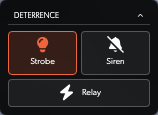
On a fixed camera without PTZ, the narrow palette contains only its available Talkdown and deterrent controls:
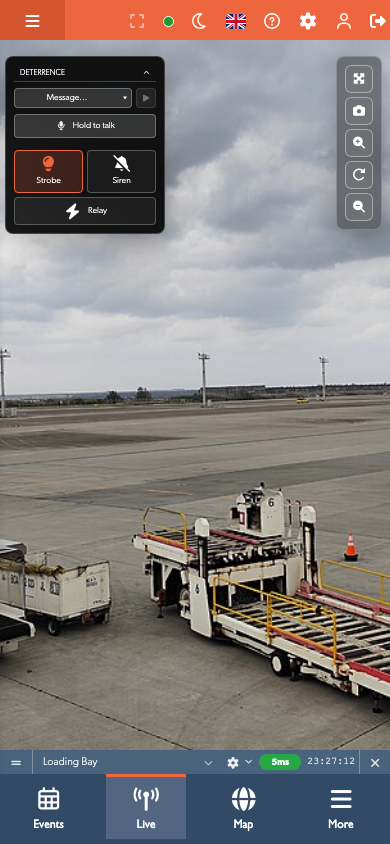
These buttons send manual commands. They do not create camera detection rules. If a control is missing, check the camera's Active Deterrents section on its information page and your account's permissions.
On an event's operator page, Garrison Mode controls the supported sirens and strobes on cameras you can control at that site. It asks for confirmation before starting. Mixed means some outputs are on and others are off; use its Stop icon to stop them together. Relays are excluded from Garrison Mode.
Events and Site Notes
Right-click a camera tile, or open its ... menu, and choose Show events to open that camera's events. You can keep an Events page with saved filters, including alarm filters, and live previews beside Live View while reviewing an incident.
The site-notes button beside a camera name opens the site's instructions if you have permission to read them. For location context, use the TetherBox Map or map links in event details.
Troubleshoot Live View
Video stutters or stops: Switch Quality to Preview, use fewer tiles, check the site's upload speed, or lower the camera's bitrate.
A tile shows an error: Check the camera on the Cameras page and confirm its TetherBox is connected. Then reload Live View.
PTZ does nothing: Check that the camera supports PTZ and that nobody else is moving it. Some cameras need a moment between commands.
Live View pauses on its own: If an idle limit is enabled, Live View asks Are you still here? and stops streaming until you respond. Administrators and integrators can change the duration. Choose No limit in the TetherBox's Live View idle setting to disable it for that source. When a wall uses several remote sources, any remaining positive limit still applies. Local streams do not count towards that limit.
Remote Control and Integrations
The video-wall API can list and switch a viewing account's saved presets. Use the account assigned to the wall: a switch reaches all of that account's open Live View pages, rather than one particular screen.
Related Articles
- Talkdown (Push to Talk) - Speak through a camera.
- Related Zones - Open cameras near the one that raised an event.
- Cameras - Manage camera settings.
- Local Streaming - Watch directly from a TetherBox.
- Live View - Technical Implementation - Stream delivery and timing measurements.
- Notifications - Configure alerts.
Referenced in: