

Table of Contents
PTZ Cameras Setup Guide
Control your PTZ (Pan-Tilt-Zoom) cameras directly from TetherX to monitor larger areas with a single camera.
Requirements
- A camera that reports supported pan, tilt, zoom or focus controls
- Camera must be online and connected to your TetherBox
- ONVIF protocol enabled on the camera (see How to Enable ONVIF)
Check Available Controls
TetherBox records the controls each camera reports when it checks its APIs. Live View uses that report and your account's permissions. A fixed camera with a motorised lens may offer zoom or focus without directional arrows.
An unknown result means the controls have not been measured, rather than that the camera has no controls. Where your account permits it, use Refresh in the control panel to check again. An administrator can also refresh capabilities from the camera's API tab. Preset positions load when you open their list.
Using PTZ Controls on Desktop
Go to Live View and select your PTZ camera
Open the PTZ panel for the camera:
- Directional arrows - Pan left/right, tilt up/down
- Zoom controls - Zoom in (+) and out (-)
- Presets - Load saved camera positions
- Relays - Access outputs reported by the camera
Use Control Speed to adjust how quickly the camera pans, tilts or zooms. A higher value moves faster. Open the information popover beside PTZ for a reminder and a link to this guide.
Live view shows controls the camera has confirmed. If no controls are available, the PTZ panel stays hidden. To check a camera again, open its API tab and refresh its capabilities.
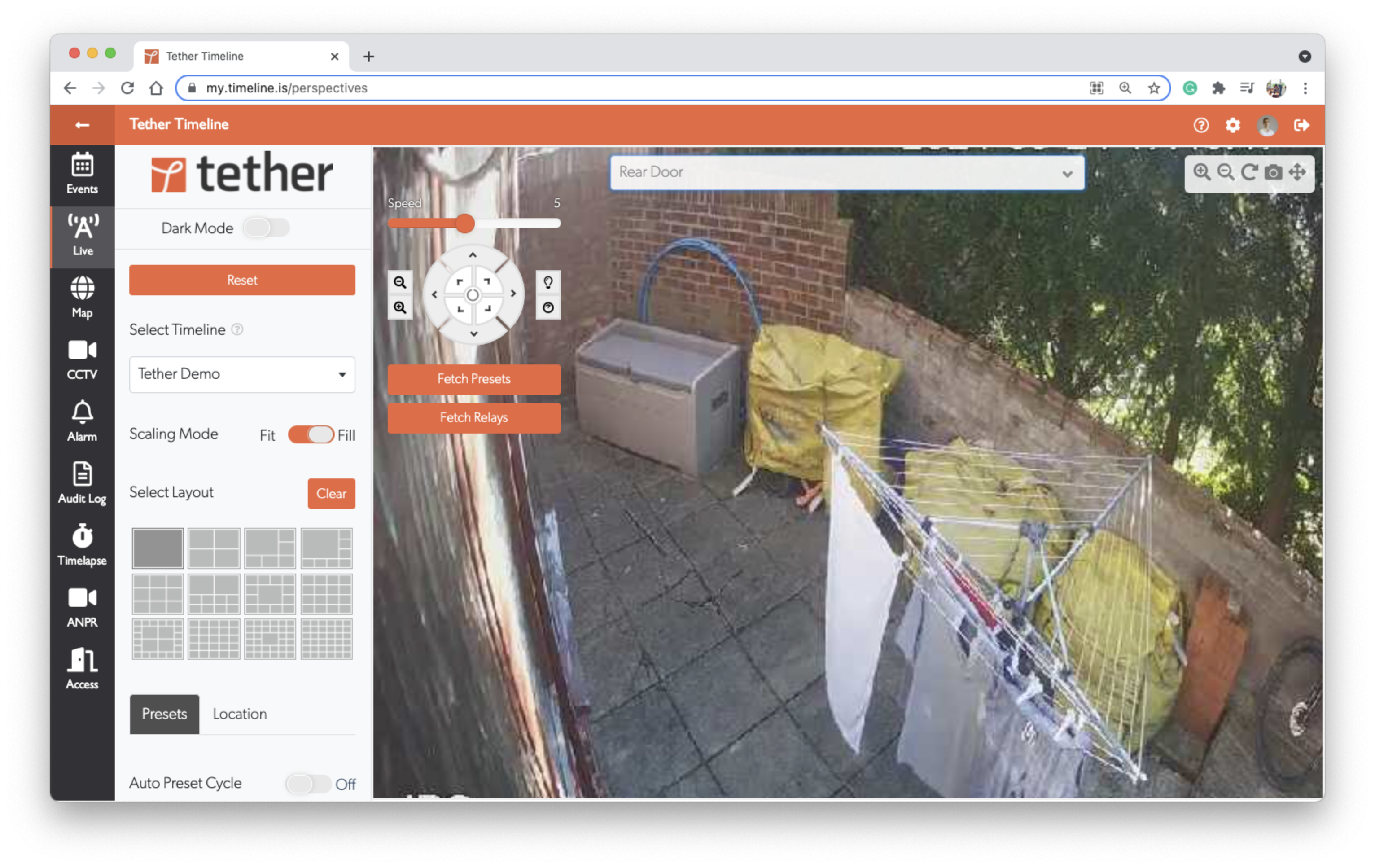
Tip: Click and hold the directional arrows for continuous movement, or click once for small adjustments.
Save and Delete Camera Presets
Open Presets in the camera tile and choose Manage presets… to see existing positions. To add one, move the camera to the view you want before opening the manager, enter a Name in the inline form below the table and click Add preset. To remove a stored position, click its trash button in Actions and confirm at the same control. The button shows progress while the camera responds, then the row fades out after successful deletion.
These positions are stored on the camera, separately from the layout presets in the Live View sidebar. See Live View preset instructions for the illustrated saving and deletion steps. Your account needs PTZ permission, and the camera must accept preset changes through its API.
Using PTZ Controls on Mobile
Open the TetherX app and go to the Live tab
Select your PTZ camera from the dropdown
Tap the tile to show its controls, then expand PTZ
Use the on-screen joystick and zoom buttons to control the camera
Troubleshooting
PTZ Controls Not Appearing
- Check account permissions - Your account must be allowed to use PTZ
- Verify ONVIF support - Some cameras require ONVIF to be enabled for PTZ to work
- Check camera capabilities - Refresh the camera's API report if its controls are unknown
Camera Not Responding to Controls
- Network latency - PTZ commands may have a slight delay over slower connections
- Camera limits - The camera may have reached its pan/tilt limits
- Permissions - Check the camera's web interface for any PTZ restrictions
Presets Not Loading
- Reload the list - Open Presets, or use its refresh icon to fetch positions from the camera again
- No positions saved - Open Manage presets… and click Add preset to save the current position, if the camera accepts preset changes
- Camera API support - Some cameras do not expose presets through ONVIF, or allow recall but refuse saving and deletion. Use the camera's own web interface when those changes are unavailable through its API
Related Articles
- Axis Setup - Native Axis PTZ API for smoother control
- How to Enable ONVIF - Enable ONVIF protocol for camera discovery and PTZ
- Live View - Using the live view interface
- Manual Camera Configuration - Manual camera settings reference
Referenced in: