

Table of Contents
Local Streaming
When you're on the same network as your TetherBox, TetherX can stream supported live video and recordings directly to your computer, phone or tablet. This reduces the site's internet bandwidth use and can help when remote playback is slow. TetherX checks for a local connection automatically.
During an Internet outage, use the TetherBox offline interface. The usual TetherX platform still needs the internet for sign-in and pages, even when video streams locally. The offline-interface guide covers local sign-in, camera viewing and recordings; arrange access before an outage.
Start on the Site's Network
- Connect your device to the same local network as the TetherBox. Guest Wi-Fi may prevent access to other devices.
- Check that the TetherBox is powered on and connected to that network.
- Open TetherX and view a camera or recording. Allow local-network access if your browser asks for permission for your trusted TetherX platform.
Recorded footage must still be stored on the TetherBox to play locally. Cloud-only footage uses the cloud connection. Operator accounts and accounts with restricted recording access windows also play historical footage through the cloud.
Check the Connection Indicator
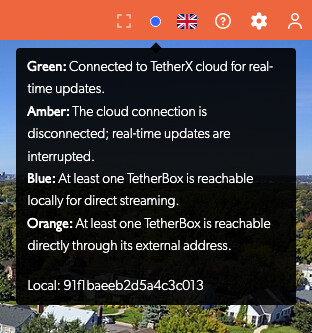
The coloured dot in the top menu bar shows the connection status. Hover over it for the legend and a list of TetherBoxes available for direct streaming.
| Colour | What it tells you |
|---|---|
| Blue | At least one TetherBox is reachable locally for direct streaming. |
| Green | Your browser or app is connected to TetherX cloud for real-time updates. |
| Amber | The cloud connection is disconnected; real-time updates are interrupted. |
| Orange | At least one TetherBox is reachable directly through its external address. |
A blue dot does not mean every camera is streaming locally. Check the TetherBox list in the tooltip; footage from other units or stored only in the cloud may still use the internet.
If Video Isn't Streaming Locally
Work through these checks in order. You do not need to change camera recording settings.
1. Check Whether You Can Reach the TetherBox
Follow Connect to your TetherBox to find its local address and open it in your browser.
- The sign-in page opens: your device can reach the unit. Continue to the HTTPS check below.
- The page times out or cannot be reached: confirm the address and check power, network cabling and Wi-Fi. If it still fails, give your network administrator your device's IP address and the TetherBox's IP address. They can check guest Wi-Fi isolation, VLANs and firewall rules.
2. Check the Secure Local Address
The platform uses a secure HTTPS hostname to connect locally. Opening the TetherBox's HTTP IP address proves basic reachability, but does not check this secure connection.
Ask your administrator for the unit's LAN hostname. It follows the pattern https://lan-SERIAL.YOUR-TETHERX-DOMAIN, using the TetherBox serial number and your platform's domain.
| What happens when you open it | Next step |
|---|---|
| The sign-in page opens without a certificate warning | Continue to the sign-in check below. |
| The hostname isn't found or a DNS error appears | Ask your network administrator to check DNS filtering, including rules that block public names resolving to private addresses. |
| A certificate warning appears | Ask your administrator or TetherX Support to check the TetherBox certificate. |
| The connection times out | Ask your network administrator to check access to the TetherBox over HTTPS. |
3. Check Local Sign-in
Use the token instructions in Connect to your TetherBox and select Sign in. The guide also explains how to view cameras and recordings, so you can check whether direct access works.
If the token is rejected, ask your administrator to check the token, account expiry and whether your permissions have reached this TetherBox. If direct sign-in works but video still won't stream locally through the platform, contact TetherX Support with the TetherBox serial number, browser or app, exact error and the results of these checks.
Information for Your Network Administrator
Local streaming needs the viewer to reach the TetherBox across the local network. Check client isolation, routing between VLANs, DNS filtering and browser local-network permissions. Local streaming does not require internet port forwarding.
- HTTPS video and preview: allow TCP 443 from the viewer to the TetherBox.
- Local WebRTC media: the shared MediaMTX service uses UDP/TCP 8189. Older per-camera services use the camera stream's RTSP port plus 40000. If this media connection is blocked, Live View falls back to low-latency HTTPS streaming.
Limit these permissions to the relevant viewer and TetherBox networks. For the separate cloud connection and its outbound firewall requirements, see Connecting your TetherBox to the Internet.
Related Articles
- Using the TetherBox Offline Interface - Local sign-in, cameras, recordings and network settings
- Live View - Camera walls, saved views and playback controls
- Events - Find, review and share recorded footage
- Connecting your TetherBox to the Internet - Site connectivity and firewall requirements
- TetherBox Troubleshooting - Power, network and recording faults
Referenced in: