Table of Contents

Q3 2026 Release Notes

July - September 2026


New Features

Accounts and access

  • Automatic account lockout. An account locks itself after ten wrong passwords in fifteen minutes, or five wrong verification codes. The lock lasts fifteen minutes, or an hour if it happens again without a successful sign-in between, and always clears on its own, so nobody waits on an administrator to get back to their cameras. The account holder is emailed when it happens, and setting a new password from the reset email clears the lock at once. See the new Account Lockout page.
  • Sign in to the iOS app with Google, including passkeys.
  • Limit a person to particular sites. Integrators, administrators and distributors now have a Site access section on their Permissions tab, with an All sites switch per timeline. It starts switched on, so nothing changes until you deliberately turn it off. Turn it off and tick the sites that person should reach: events, live view, recordings, cameras, TetherBoxes, alarms and number plates all follow that choice, so an unticked site simply is not there for them. The list only offers sites you can see yourself, so nobody can hand out access they do not have.

TetherBoxes

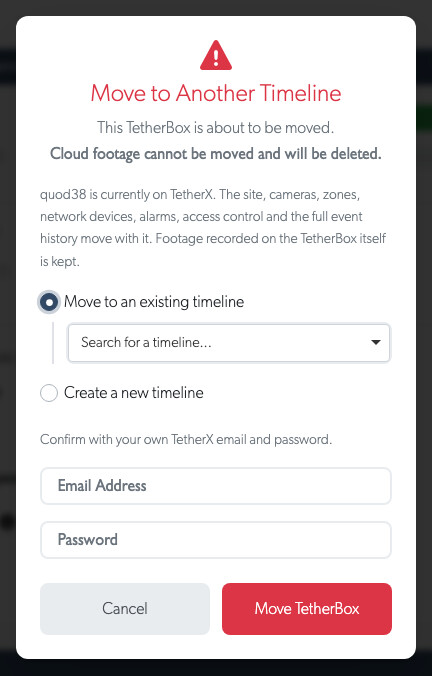
  • Move a TetherBox to another timeline from the Actions section of its page. Pick an existing timeline or name a new one, and it goes across with its site, cameras, zones, network devices, alarms, access control, event history and the footage recorded on the TetherBox itself, where this previously meant a factory reset and losing all of it. Cloud footage is the exception, because cloud storage paths are built from the timeline name, so you are told how many cameras and how much footage will be deleted before you confirm. Cloud recording is not cancelled: each camera uploads to its new location once the move finishes. The move runs in the background and emails you when it completes. See the new Timelines page.
  • Administrators can reboot, shut down, factory reset and move a TetherBox, format its drives and manage its USB devices. These were Integrator actions, so an owner who locked their installer out after commissioning, which the Integrator type is designed for, could no longer maintain their own hardware, and the buttons were simply absent from the TetherBox page. Each still asks for your password and, where it applies, a reason.
  • Run TetherBox as a virtual machine on a spare PC or server. The new Running TetherBox in VirtualBox guide covers installing VirtualBox, importing the appliance, switching to bridged networking so it can see your cameras, and adding a disk for recordings.

Camera deterrents

  • Set off a camera's own siren, warning speaker or white-light strobe from TetherX. The outputs appear as buttons in Live View and on the Camera API Tab, which also sets strobe duration, which built-in warning message to play and at what volume, and which output to close on a camera with more than one. It lists what the camera actually has: speaker, strobe, alarm output, alarm input, microphone inputs, and separately its night-vision lighting, which is not a deterrent. Nothing is guessed from the model name, so a control appears only when the camera reports the hardware, and its own answer is passed back, so a camera that refuses says so rather than showing a false confirmation. The operator console's Siren / Strobe entry, which previously did nothing, now fires the real thing. First vendor supported: TVT, including its LTS, InVid, Avycon and Provision-ISR rebadges.
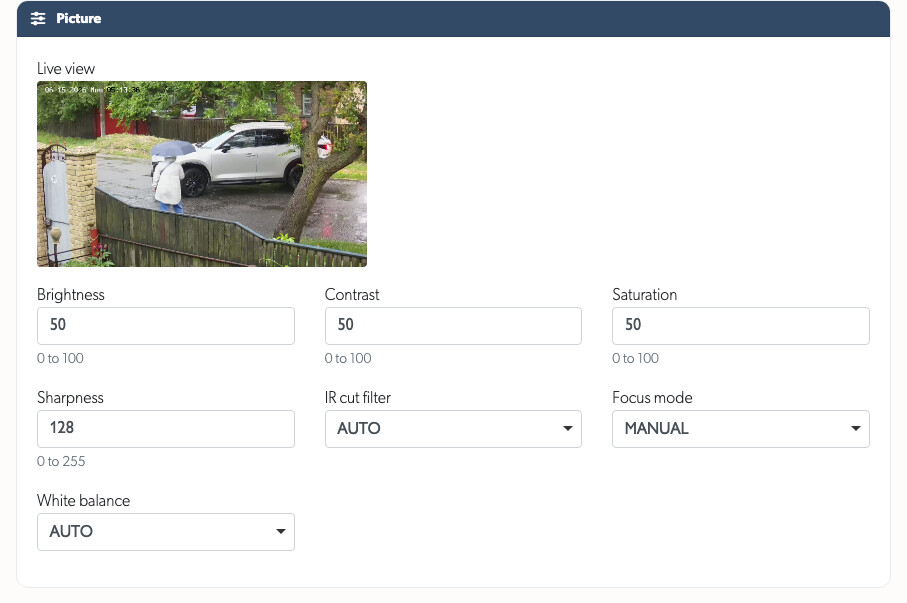
  • Picture controls on the Camera API Tab: brightness, contrast, saturation, sharpness, the infrared cut filter, focus mode and white balance, read from the camera and written back, and only what you change is sent. Every control uses the camera's own declared limits, so nothing is guessed: this TVT's sharpness runs 0-255, and a fixed 0-100 slider would have clipped it to under half its range. A setting the camera reports no range for gets no control rather than a made-up one, and one it never mentions is shown as unsupported rather than as off. Exposure is deliberately absent, because on the reference camera the limits come back impossible, with a minimum exposure time above the maximum and a gain whose minimum equals its maximum.

API Changes

The full interactive reference lives under Developers.

  • Deterrents are on the public API, alongside audio challenge. GET /api/v3p/zones/{id}/deterrents lists what the camera in a zone actually has, including the names of its built-in warning messages and its alarm outputs. POST /api/v3p/zones/{id}/deterrent triggers one. GET /api/v3p/zones/{id}/deterrent_status reads back whether the speaker is playing, the lamp is lit or the contact is closed right now, which is the only real confirmation that something fired. A camera without the hardware, a firmware that refuses and an offline TetherBox are all reported as errors, so an integration can never record a trigger that never happened. Full reference under Zones.
  • The SIA alarm endpoint now says which part of a message it rejected. POST /api/v3/alarms/sia_event previously answered every malformed string with the same sentence, leaving no way to tell a bad account number from a bad timestamp. It now names the segment and the shape expected for it, for example "The area segment riXX is not valid. Expected ri followed by a two-digit area, such as ri01." Errors are also proper JSON now, in the same envelope the /api/v3p/ endpoints use, where they were previously sent as an unquoted string that a JSON client could not read.
  • Malformed requests answer 4xx instead of 500. A body that is not the content type it declares now answers 400, and a missing parameter answers 422, across the /api/v3/ endpoints. Both previously returned a server error page telling the caller to read our log file.
  • The SIA documentation now describes the format it actually accepts. The published description covered neither the permitted characters for each segment, nor that a Virtual alarm with a matching Transmitter ID must exist first, nor that JSON bodies are accepted. It also documented one message format for both the TCP receiver and the REST endpoint, which take different messages. The two are now described separately, and the examples in the documentation are checked against the parser so a copied example cannot be one the endpoint rejects.

Improvements

Activation and onboarding

  • Activation looks and behaves the same on every step: one card per step, a progress bar, and a panel naming the TetherBox you are activating with its live status. A unit that has not reached us says so plainly with a link to the troubleshooting guide, instead of the old warning that read "your TetherBox is presently" followed by a red dot.
  • Choosing between an existing timeline or site and a new one is a straight pick-one rather than a pair of tabs, showing only the fields for your answer. Both default to new, which is what most activations are, and an answer survives a validation error rather than reverting. Leaving it blank now tells you so in the same place and style as every other form error, rather than failing silently.
  • The address on the activation and site forms puts city, region, postcode and country in two columns rather than one long stack, and the "is this a chain" question is a single switch with an explanation instead of a pair of Yes/No radios.
  • A required field is marked the same way everywhere: a small red dot at the end of its label, with a tooltip. It replaces the red asterisk, which was drawn differently on different forms and not at all beside a tickbox, so there was no way to tell that a box had to be ticked.

Cameras and configuration

  • The Cameras list shows the newest cameras first by default, and a new Audio column tells you whether each camera is actually recording sound. The camera export in CSV and Excel includes the same. A camera counts as recording audio only when audio is switched on and the recording stream genuinely carries a sound track.
  • The Camera API Tab reads correctly. Sections whose value is a single item (Model) or empty (Audio Set Error) used to expand to an empty box, and one the camera answered with nothing is no longer listed as available at all. Device Information listed every field twice, because the camera answers natively and over ONVIF and the two spell field names differently; there is now one row per fact, and where they genuinely disagree (this TVT reports firmware 5.1.2.0(46419) natively and 5.1 over ONVIF) both are shown and labelled rather than one dropped. Field names are spelled properly throughout: IP Filter, DHCPv6, TLS 1.2, X.509, IPv6, Dot1X.
  • Hovering the illumination hardware listed on a camera explains what each lamp is, and in particular that none is a red/blue beacon and none flashes. Dual light is the infrared plus white supplement lamp used for night vision, smart light is the camera choosing between them automatically, and the deterrent strobe is the separate white light listed above.
  • Hovering the live preview for a monitor-only camera with no snapshot set up shows a short "not configured" note instead of a broken image.

Storage and health

  • The Storage tab makes clear when a drive's health readings are historical. An unplugged drive's SMART Health card is tinted amber, its heading shows how long ago the drive was last seen, and a note explains the figures are the last data we had. Previously the old readings looked like current information.
  • The Health Report treats a TetherBox that has stopped recording for want of a storage drive as a critical issue at the top of the list, rather than a suggestion further down. A unit with no storage drive stops recording to protect its built-in card, so no footage is being kept at all, and both the report and the alert now say plainly that its cameras are NOT recording until you connect or replace the drive. Units still recording onto an undersized drive stay a suggestion, with the softer wording.
  • The weekly and monthly Health Reports show footage gaps over the last 7 days as well as the last 24 hours, so an occasional gap that never crosses the daily threshold still surfaces. A camera with both is listed once, showing each count, for example "12 in 24hr / 40 in 7d". The daily report is unchanged.
  • The connection status popover and the badge on the TetherBox list show while a unit is updating and how long the update has been running, and clear as soon as it finishes. The badge no longer disappears when a unit checks in part-way through an update, nor lingers for an hour afterwards, including when a unit is reinstalled with the software it already had.
  • A drive stays connected on the Storage tab while it is connected. A heartbeat that reports nothing about a unit's drives used to be read as a unit with no drives left in it, so every drive on that unit was marked unplugged, lost its device path and showed no reason why. Two heartbeats did it: the short ones a unit sends after a UPnP port forward, a stress test, a speed test, an MSS change or a smart-plug switch, none of which look at the drives at all; and any heartbeat from a unit that could not read its own drive list at that moment. One unit showed a mounted 1 TB Seagate as unplugged for half an hour while it was 89% full and answering every health probe, which is what this was found on. A heartbeat that does not mention drives now leaves them as they were, and a drive the unit gave no verdict for keeps its state while the unit still reports its filesystem mounted. A drive the unit does name a reason for, such as a disk that presents no volume or one that stopped answering, still comes offline carrying that reason.
  • Staff see a Filesystem health table on the Storage tab, listing what each mounted filesystem records about itself: its state, the number of errors it has kept, when the last one happened and which kernel function recorded it, how much has been written since the filesystem was created, and when it was last checked. A unit running 6.26 or later sends this with every heartbeat. It is how a wearing SD card shows itself: one unit was recording fresh corruption twice inside a single session, against 12 TB of writes and no check since April 2025, while the only signal reaching us was a yes-or-no corruption flag reading no. A filesystem the unit could not read is left out of the table rather than listed as clean, and the written figure is what the filesystem counts, not a wear reading, since it cannot see the card's own erase cycles.

Events, recordings and live view

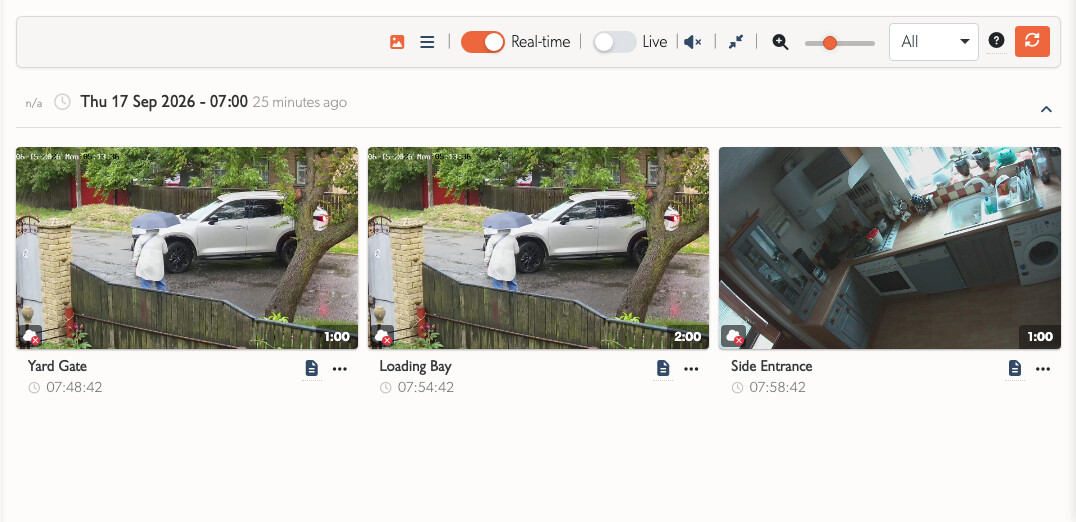
  • Recording and event pages use a single layout that adapts to any screen instead of switching between separate mobile and desktop versions. Turn a phone to landscape and the video fills the screen, with the thumbnail strip and the speed, grid and size controls tidied away so the picture and its scrub bar are all that remain.
  • The recording scrub bar loads a spread of preview thumbnails straight away, so on a slow connection you can scrub close to the right spot without waiting for the whole timeline.
  • The live camera wall re-fits when you rotate a phone, filling the screen rather than leaving the cameras bunched at the top.
  • On phones in landscape, page content stays clear of the screen notch or cut-out.
  • Talkdown messages in live view come from the camera's own TetherBox timeline, so an operator working across more than one site sees that camera's recorded messages instead of an empty list. The menu shows "No Recordings" when there are none, instead of an empty strip that looked broken.
  • Playing an audio message, from either live view or the event console, gives a clear reason when it cannot play instead of doing nothing. A camera with no speaker set explains how to fix it and links straight to that camera's Audio output settings.
  • An event with no footage yet shows a clear "no recordings" message in the player area instead of a blank black box. The real player still swaps in as soon as the first recording arrives.
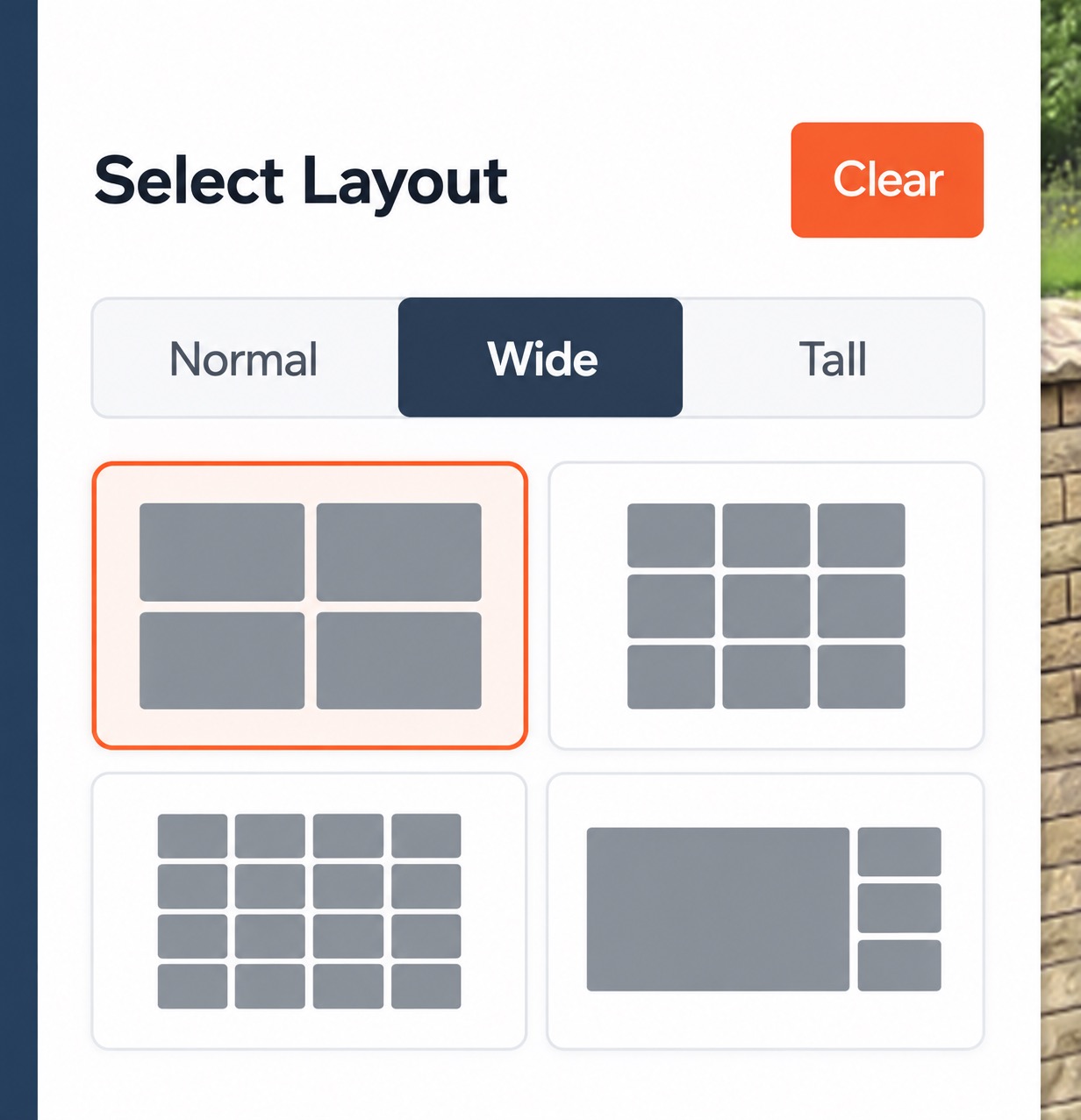
  • The PTZ panel in live view collapses when you tap its header on a phone or tablet, which it did not do on an iPhone. Twenty other controls that an iPhone could ignore for the same reason are fixed with it: the pencil that starts an inline edit, the cross that drops a filter, the refresh beside the PTZ preset and relay lists, each preset and relay in those lists, the layout picker in live view, the recorded-message list, the HD/SD switch in full screen, the full-screen button beside the camera list, the cross that clears an expiry date, the profile picture and company and distributor logos that open their picture menu, the tick that selects an event, the "All" shortcut on a filter, the health page's summary cards, the zone bypass switch on a Texecom alarm, and the headers that open the Unbilled Subscriptions, company subscription and Matrix Display panels. All of them are reachable by keyboard now, and each says what it is to a screen reader.
  • The status badges on event thumbnails all read the same way: a white symbol on a coloured disc, red for a fault such as a camera reporting slow storage, green and blue for the plate and visitor badges. Each badge previously drew its own symbol on a small white dot, which at thumbnail size was harder to tell apart from the picture behind it.

Operator console and notifications

  • The operator console offers the contacts for the site the event came from, instead of everyone on the timeline. Send Report and Escalate open with the right people filled in, and Call lists only the people who look after that site, so handling one site in a large timeline no longer means ringing every other site's contacts.
  • Your notification preferences live on their own Notifications tab on your profile, so every user can find and change their own alerts. They were previously inside the Permissions tab, which only administrators, integrators and staff could open. Every user now also gets the weekly Health Report by default and can switch it on or off there, where previously only integrators and staff received it.
  • Offline alert emails include a Notification Settings button and list everyone who was alerted, with a link to change who is told when that TetherBox goes offline. Previously there was no way to tell from the email who else received it or how to stop receiving them.
  • The factory reset and activation emails read like the rest of our email: the facts as a table, each one a link to the TetherBox, timeline, site or person it names, so you can open the TetherBox you have just activated straight from the email.
  • The factory reset email names the reason the reset was requested, next to the TetherBox, timeline, site and the person who asked for it. The reason has always been asked for, and where "Other" was chosen the email carries what was typed in, so everyone told about a reset can see why it was ordered. The staff note kept on the unit records the same wording, rather than the internal name for the reason it used to store.

Elsewhere in the platform

  • The Site page has an IMMIX & Sentinel tab for the alarm-receiving-centre settings (send to IMMIX, Sentinel Site ID and device address) and the custom email server settings for that site, editable in place. These could previously only be changed from the separate Site edit form.
  • The TetherBox page has an Events button next to Live, for all events recorded by that TetherBox.
  • The TetherBox list offers a Created column, off until you tick it in the column picker. It shows when the serial number was added to our records, which is not the date the unit was built: for the date a unit was put into service, use the Activated column.
  • The ANPR plates-per-day chart draws a separate line for each direction of travel, plus an Unknown line for cameras that do not report one, instead of one combined total.
  • The report inside an event-download ZIP records who requested the download, with their name and email, and the IP address it came from, so exports carry an audit trail of who took footage and from where.
  • The audit sessions page loads faster.
  • The location panel on the TetherBox page is called IP Location and says what it reads. The country and city come from the public address the unit connects from, which usually names your provider's exchange in the same region rather than the site itself, so a unit expected in Sydney that now shows the United States has either changed provider or left the site. The heading, the Country label and the City label read in your language.
  • The map credit under every map reads "Leaflet" alone. The mapping library it comes from ships a Ukrainian flag inside that credit, which nobody here put there and which does not belong on a customer's screen.
  • Adding a site now searches for the address instead of guessing at it. Start typing a street, a town or a building name, pick the real place from the list, and we fill in the address, town, region, postcode and country from what you picked. The search is on every form that asks for an address: activating a TetherBox, adding or editing a site, and the company and distributor forms. Correcting one field at a time on the Site page works as it did before. Before this we took whatever you typed and looked it up afterwards without ever showing you the match, so a half-typed address could put a site on the wrong side of the world. You can search anywhere: an Australian state, a Canadian province and an Indian state all arrive in the right box. All five fields stay editable, and you can ignore the search and type the address yourself, which you will need to do for a unit too new to be on the map yet.
  • Every phone number field now has a country picker in front of it. The flag opens on the country your time zone names, so you type your number the way you say it, 07911 123456, and it is stored complete with its country code as +447911123456. The field says so while you are still on it if the number is too short for the country you picked, and a number that is not a real one is refused rather than saved and found unreachable later. It covers your profile, adding a user, activation and storage-unit users. Numbers saved before this are left exactly as they are until someone edits one.

Help and documentation

  • A new Timelines page explains what a timeline is, when a second one is worth having, and how large one should get before splitting, for which we suggest around 1,000 cameras. The activation hint and the Definitions page link to it.
  • A new Getting Started page covers the first things to do with a new timeline, and the activation confirmation email links to it.
  • The Pre-Flight Checklist for integrators has been rewritten: the three things that actually send an engineer back a second time are at the top, the post-install checks are a table of what good looks like, and the checkboxes that used to print as literal "[ ]" are gone.
  • The Troubleshooting Kit page says what to carry as a condition rather than assuming you installed the unit: a screen is an HDMI monitor or a USB-C to HDMI adapter that turns your laptop into one, with a photograph of the adapter. Spare drives are 128 GB or larger, and the TetherBox Giga takes a suitable ATX or compatible supply rather than the 19 V figure printed before, which was wrong.
  • The Monitoring Station Operator Guide says which accounts appear in the console's Send Report and Call menus, and why one might be missing: Call lists only people with a mobile number, and a supervisor whose zone permissions do not cover the site is not offered at all.
  • The Two-Factor Authentication page explains what makes a valid password and what gets rejected (common passwords, your email address, simple sequences), with examples.
  • A new Where to Run the TetherBox Software page covers the two ways to deploy the bridge software: on site, on the same network as the equipment, or centrally, reaching it across a link. It compares the two on recording through an outage, bandwidth, Internet exposure and remote management, lists what a central deployment needs before you commit to it, and works through two real sites that started central and moved on site, including an academy whose recording traffic saturated a 2.5 Gbps core at exactly the times footage gets asked for. Eight cameras at 4 Mbps is roughly 10 TB a month across the link, which is the figure that decides the design on anything metered or cellular.
  • Tables in help articles and release notes wrap their text instead of scrolling sideways. Cells inherited the white-space: nowrap the platform's data tables rely on, so a comparison table of full sentences sized itself to its longest sentence and pushed the page off screen.

Bug Fixes

Accounts and access

  • An integrator limiting an account to particular sites now sees the Site access list, and the sites they tick are the sites that account reaches. An integrator editing an administrator, integrator or distributor was shown the zone list instead. Those account types reach whole timelines narrowed by their site list and read nothing from their zone list, so ticking six zones on it changed nothing and the account went on reaching every site on every timeline it held. The Site access section now appears for an integrator as it already did for an administrator. An integrator may only tick sites they can see themselves, and nobody may widen their own site access: an account already limited to one site is told to ask another administrator. Zone ticks already on such an account are left alone: nothing reads them, and deleting somebody's selection to tidy the record away is not an improvement.

  • A distributor now sees every camera on the timelines they hold, in the live view and on their own units. A distributor reaches whole timelines narrowed by their site list, the same as an administrator or an integrator. Three places decided that separately and two of them left the distributor out, so the live view showed a distributor only the zones somebody had ticked, and the sign-in a unit receives listed no cameras at all when nobody had ticked any. All three now ask the same question.

  • The company you type while activating a TetherBox now reaches your account, and the names people typed in the past have been recovered. Step 2 of the activation asks for your company and step 4 asks which company is carrying out the installation. We treated those two answers as one, so the name you typed at step 2 was thrown away while the wizard reported success. Names typed since 2019 stayed in the database with nothing able to read them back, and you will now find them on the profile page. The company box on a profile is unchanged and still holds free text: it is not the list of companies an account belongs to.

Storage drives

  • A drive that has been unplugged no longer keeps showing as online, and the Storage tab says why a drive is missing: "Unplugged", "Not answering" or "Unreadable", clearing the moment the drive answers again. A removed drive could stay listed as online with a fresh "last seen" on every check-in, because Linux can keep the device entry behind after it is unplugged and the unit filled in the serial number from its own remembered list, so a drive moved into a NAS still looked live with health figures months out of date. A drive is now only recorded when the health reading genuinely identifies one.
  • An internal drive that has been swapped out shows as "Unplugged" and no longer offers a Format button. Previously, after a boot drive upgrade, the old drive lingered in the Storage tab with a Format option.
  • A unit failing its own storage write test is no longer shown as healthy. The unit checks every five minutes that its recording disk can take a write and read it back; when that failed on the recorder's own mount nothing was ever sent to us, so one unit failed 1,509 times over two days and stayed green throughout. Those failures now reach the cloud and clear once the disk recovers.
  • Drive wear is judged from the drive's own remaining-life percentage everywhere. Some drives report wear in a maker-specific way, so a nearly-new Samsung 870 EVO could be flagged in the summary while its detail row correctly showed it as healthy, and LiteOn and Plextor M6S models were marked "Critical" and shown an impossibly small amount of data written. The misleading lifetime-written figure is no longer shown for those drives.
  • Drives are no longer flagged as too hot when running within their rated temperature. Surveillance drives such as Seagate SkyHawk are rated to 70°C, but the health check used a fixed 60°C limit. Each drive's own rated maximum is now used where the drive reports it.
  • A drive running at exactly its rated maximum temperature is shown as warm rather than too hot. Each drive is checked against the maximum operating temperature it reports, but a drive sitting on that figure was flagged as overheating, so a Samsung 870 EVO rated to 70°C was reported as too hot at 70°C and included in the weekly health report. A drive is flagged only once it is above its rated maximum, which is the point at which it is running outside the range the manufacturer specifies.
  • A drive reporting 0 bytes gets a clear message instead of being called "too small for recording", which made no sense at that size. This happens when a drive is dead, or a USB adapter is not presenting any storage, and the alert now says the drive is connected but reports 0 bytes, and to try re-plugging or replacing it.
  • Older TetherBoxes no longer show a false "reconnect your storage drive" alert. These units cannot report drive status, so the health check skips that warning for them.
  • A unit clears the ejection of a drive that answers it again. A unit ejects a drive it cannot write to by force-removing the block device. A drive that reports health data again has therefore been replugged, rescanned, or formatted and remounted. Until now the Storage tab still showed that drive as ejected, and the unit still raised its "drives ejected" banner, until an operator cleared both by hand. The unit ejects the drive again on the next failed write test, so a drive that is still faulty does not stay cleared. A second drive that is still missing keeps its ejection.
  • We act on the check-in a unit sends straight after you format or eject a drive. A unit reports within seconds of an operator action. We ignore a second check-in from the same unit inside three minutes, so that duplicates do not pile up, and that rule caught these reports too. The Storage tab could therefore show a drive as it stood before you touched it, for up to sixteen minutes. A unit now names the action it has just carried out, and we act on a check-in that names one.

Health dashboard

  • The summary at the top of the Health page and the tabs beneath it count the same units. The Overloaded tile judged a unit only by its processor load against the number of cores it has, so a fleet whose Overloaded tab listed four units, flagged for memory pressure and for days of recording capacity left, was summarised as none overloaded.
  • A TetherBox that is offline no longer counts towards Healthy Systems. An offline unit reports no load and no disk waiting, which read as a calm unit, so a fleet with three units offline could be summarised as 100% healthy while the headline beside it said three issues need attention.
  • The health figure in the summary is the share of sites with nothing needing attention, rather than a share of units. One TetherBox can carry a hundred cameras, so a figure counted per device moved according to where the cameras happened to sit, and camera faults never moved it at all. The labels beside it show how many sites are clear, how many have something to look at, and how many cameras there are.

Cameras and devices

  • Cameras no longer briefly drop out after a TetherBox software update. When a unit updates it reloads its settings and re-reports its cameras, and a camera whose device was not being actively monitored could be removed by mistake, cutting live view and recording for a few minutes. Devices now stay on the box through an update and are removed only when actually deleted.
  • Bulk editing cameras saves device-level settings such as Disable API, Disable Defaults, camera username and password, ports and connection options. These were previously discarded silently, so the cameras kept their old settings. The connection settings are also labelled with correct capitalisation (Force TCP, ONVIF Port, RTSP Port, URL Auth).
  • The camera's Device Information panel spells hardware terms properly: CPU, GPU, NPU, RAM and ISP in capitals, rather than "Cpu", "Ram" and "Isp Version". The labels are generated from whatever names the camera sends, so every camera reporting these fields is fixed, not just the one that surfaced it.
  • Filtering the Cameras list by Online no longer includes cameras whose TetherBox is offline. These correctly show under Offline instead.
  • The TetherBox and camera pages update online status live again, turning green on their own without a reload.
  • Moving a device to a different TetherBox no longer fails when one of its cameras uses a port already taken on the destination unit. The cameras are given free ports instead.
  • Scanning the network from the Network Devices page no longer fails with "you are not authorised to access this page". Integrators and admins with network device access can start a full scan again, which speeds up commissioning when a TetherBox has not yet picked up the cameras.
  • The camera's MAC address is shown again on the camera page, on the subscription line and in the cameras spreadsheet export. It had been blank on every camera since cameras and devices were split apart, because the page was reading a camera field that nothing filled in. It now reads the address from the device the camera belongs to, which is where it has always been recorded.
  • The PTZ preset list loads again. Fetching presets had failed on every camera since the end of July: the name the browser sends for that command no longer matched the one the TetherBox accepts, so the request was rejected before it reached the camera, and the list came back as an error. The preset list also arrives in a field of its own now, rather than in the field that says whether the command worked.
  • A command a camera or a TetherBox refuses is reported as a refusal, with the reason the camera gave. Every answer from a unit now comes back in one shape, so a camera that has no speaker, a camera that never answered and a unit that is offline are told apart instead of being flattened into one "could not be processed" message. A command that never happened can no longer be reported as one that did.
  • A camera in monitor only mode reports the fault it actually has. A rejected camera password, a timeout or any other fault on its analytics stream showed as "Camera state is unknown. There may be a malfunction on the TetherBox", because the camera page read only the snapshot state in that mode, and a camera in monitor only mode runs the analytics stream as well. The same cameras were missing from the Cameras list filtered by error, and the fault list beneath the camera named the wrong stream, calling every fault a snapshot fault.
  • A camera in monitor only mode with no snapshot path says which setting is missing, on the camera page and in live view. The TetherBox needs a snapshot path to fetch a still image, and without one live view answered "Camera not found", which reads as a camera that has been deleted. Some manufacturers serve no still image in monitor only mode, so those cameras show live view only in record mode.
  • A camera that has never reported anything is no longer read as a camera with nothing wrong. Where the TetherBox had reported no state at all and the camera password had been rejected, the page said the state was unknown rather than naming the rejected password.
  • Camera states sent by a TetherBox in a batch are applied again. Every camera in such a batch was discarded on arrival while the TetherBox was told the batch had been accepted, so the two could never agree and the TetherBox kept resending. Cameras that had gone unauthorised, offline or into error could sit on the site showing their previous state indefinitely.
  • Moving a camera off the Alarm Only cloud plan stops the daily alarm recording limit emails. Switching to Timelapse During Events, or any other plan, could leave the alarm-only setting behind so the camera kept warning its daily limit had been reached. The plan on the slider is now the only thing that decides this.
  • Adding a camera works again on a site that has been running for a while. Every camera needs a zone, and the platform created one each time it tried to add a camera for a device a TetherBox had found, then left it behind whenever the camera itself could not be created. On one site this built up to ten thousand unused zones, at which point no further camera could be added at all, converting a camera to a DVR or NVR sat there until the page timed out, and the reason given named the zone rather than the cause. A zone that no camera ends up using is now removed straight away, and the naming no longer slows down as a site grows.
  • Adding a second camera by IP address or by stream URL on the same site no longer fails. The first such camera claimed a slot that only one camera per site could hold, so every later one stopped with a duplicate error, and any zone created for it was left behind.
  • A camera is added only when the device record that carries its address is written too. When that write failed the camera was still created, pointing at a device record that did not exist, and a camera in that state never reached its TetherBox at all: with no device it has no address or password to send, so the unit had no record of it, never scanned for it, and the camera sat on the site looking added and doing nothing. Two cameras on one site were in this state. The reason the device was refused is now shown on the form, and no camera or zone is left behind.
  • A TetherBox scans the whole network each of its cameras is on, not only the networks it holds an address on itself. A camera the other side of a router was reachable but its neighbours were invisible, so a second camera on that network was never found, and a camera there that answers nothing now has the unit join its network to look for it by hardware address.
  • You can delete several cameras at once again where a recorder carries its username and password inside the stream path, such as Qvis, TVT and Genie. The platform reconfigured each camera as it marked it for deletion. A camera with no device record on file has no username to put into that path, so the deletion stopped with an error and the cameras stayed on the site. The platform no longer configures a camera it is deleting, and it uses the manufacturer's default username and password where it does configure such a camera.
  • A TetherBox that discovers the hardware behind a camera added by address fills in that camera's existing device record rather than writing a second one. Until something identifies it, a camera added by address has a device record with an address and no hardware address, which is normal and is how cameras beyond a router record today.

Events, recordings and timelapse

  • The picture shown for an event uses the most interesting frame from the recording, preferring a moving person, then a face, then a moving vehicle, rather than whichever segment was recorded last.
  • Deleting several events at once from the Events page clears them all from the screen. Previously only the last one disappeared and the rest stayed until you reloaded.
  • The full-screen button in the recording and event player works on iPhone.
  • The event player no longer asks the server for a thumbnail it has already loaded. On a long event whose footage was still arriving, the strip of frames under the player could request a picture with no address, which the browser turned into a request for an address that does not exist. On an event page that quietly redirected to the home page and downloaded it in the background; on a timelapse page it produced an error page. Both are fixed, and a timelapse address with an unreadable date now answers "not found" instead of failing.
  • Opening the Events page on an address that carries a filter shows the loading spinner while the results are fetched. The page faded the "No search results" panel with nothing turning, so it read as an answer of "nothing here" until the results arrived a moment later.
  • A camera tile in live view shows one camera. Selecting a different camera in a tile left the previous camera's pictures still arriving, so the tile alternated between the two cameras about once a second, for as long as the page stayed open. A tile now retires whatever it was showing before the replacement starts, and each picture carries the camera it belongs to, so a stray one is discarded rather than drawn.
  • The pan, tilt and zoom pad, the relay buttons and the talk button on a tile belong to the camera that tile is showing. After switching a tile to another camera they could still be aimed at the previous one, so moving the camera or pulsing a relay reached the wrong device. A camera with neither talk nor a deterrent output now clears those buttons instead of leaving the previous camera's on screen, in a tile and in full screen.
  • Switching a tile to another camera keeps the picture you have until the new one is ready, rather than emptying the tile while that camera's settings are fetched. A switch that fails, or one you replace by choosing again before it finishes, leaves the tile playing rather than blank.
  • Timelapse works properly on phones again. The time slider no longer shows "Invalid date" or stops responding, dragging previews the frame under your finger straight away, and pressing play from the middle keeps loading the following frames. The scrub bar strip is no longer too tall, the picture no longer flashes a spinner between frames, and the date and time above the scrub bar keep updating. A missing frame no longer leaves an "Image Missing" message stuck over the picture once you drag to a moment that has one.
  • A link that points at a particular tab now opens that tab. Links from alert emails, health alerts and buttons around the platform, for example straight to a TetherBox's Settings, Storage or Staff tab, marked the tab as selected but still showed the Summary page underneath.
  • Tabs that fetch their contents when opened (a user's Audit Log, a camera's Logs, the audit history on a storage unit) no longer sit on a loading spinner. The click itself starts the load; previously the tab waited for the browser to decide the panel was on screen, which could take several seconds or not happen at all.
  • Switching timeline no longer briefly shows another customer's data or reverts to the previously selected timeline on the next page. On mobile, changing the timeline on the Events page closes the menu so you can see the refreshed results.
  • Alert messages and status tables no longer sit slightly off-centre or run off the left edge on phones.
  • Filtering a table down to fewer rows no longer leaves a block of empty space beneath the results.
  • Following a link from an email while signed out returns you to the exact page after you sign in. The part of the address after the question mark was dropped, so the Submit Offline Report button in an offline alert landed you on the TetherBox page without the report form open.

Translations

  • French, Spanish, Russian, Ukrainian and Hebrew read as those languages again. Every value in all five has been read and, where it was wrong, rewritten. The damage a coverage count cannot see was in each of them: sentences still in English, sentences half rewritten so an English clause sat inside a French one, French and Spanish values with Every Word Capitalised the way a machine writes a heading, and French words whose insides had been substituted, so "date" read "dàe".
  • The names TetherX sells by stay in English whatever language you read the interface in. 432 values had translated one of them, so an operator met "Тезербокс" for TetherBox, "Cronología" for Timeline or a Hebrew rendering of both, and none of those words appear anywhere else in the product, in the apps or in the documentation.
  • The operator console's escalation tooltip names the number of days again. All five languages had dropped the sentence carrying that number, which reads as a missing word rather than as a fault, so it went unreported.
  • Settings and help values in Ukrainian and Hebrew that stopped mid-sentence are complete, and the keys that had no translation at all in one language or another, which the interface covers by falling back to English, are written. Every language now answers for every value it is asked for, and a check on each test run reports any that stops doing so.

Smaller fixes

  • Choosing "Other" as the reason for a factory reset reveals the box to type that reason in. The field was there but never appeared, so the only reason you could not give was the one that needed explaining.
  • Updating your account settings from the pop-up form no longer shows a "this didn't load" error. The form saves and closes cleanly.
  • The product is spelled TetherBox in the filter bar and in the help beside Resend All, where it read "Tethebox". That help now says what the button does, rather than "force a (re)resend all devices".
  • The weekly Health Report summary counts add up. The three tiles read Critical, Noteworthy and Suggestions and match the sections below. Previously the tiles counted differently from the headline, so a report could say "5 items" with tiles summing to 6. Suggestions are advice for improvement and are now listed and counted separately from the issues to review.
  • The "Change who is notified" link in an offline alert email takes you somewhere you can change it: the people list for that TetherBox's timeline if you may see it, otherwise your own notification settings. It previously opened the TetherBox settings, which only turn alerts on or off for everybody.
  • A word matched by a knowledge-base search is set exactly like the text around it, with only its highlight to mark it. In a result title it was drawn noticeably lighter than the rest of the heading, so the word you searched for stood out least.
  • On the Native Apps page, the App Store and Google Play badges open the store listing when clicked, rather than showing a larger copy of the badge image.
  • A TetherBox's connection history shows when each connection actually started and ended. Entries between late March and late October could be recorded an hour late, so a disconnection could appear to happen after the reconnection that followed it. Existing entries have been corrected.
  • Links to the Where to Run the TetherBox Software page by name work again. Its summary line contained a colon that the details at the top of the article are not allowed to carry unquoted, so the platform could not read that article's title, and every link written by name led nowhere.
  • You can open the Texecom installation manual from the Texecom page. Both links to it pointed at an address the manual is not stored at, so selecting either one showed a file-not-found page instead.
  • Restarting a TetherBox only reports success when the restart was actually sent. When the usual route to the box is unavailable the platform falls back to a direct connection, and it had been treating that connection dying as proof the restart had gone through. A box whose remote access is broken drops the connection before it accepts anything, so those units, exactly the ones the fallback exists for, were told "Reboot initiated" having done nothing at all. The fallback now confirms the connection works before it sends the restart, and says the restart was not sent when it cannot.
  • TetherBox online and offline alerts reach the people who should get them. Working out who to tell asked whether the TetherBox belonged to a zone, and every TetherBox appeared to, because the name also covered the box's timezone. Deciding who to notify then failed, and no alert went out at all.
  • Checking a camera's password before you have chosen a TetherBox tells you that is what is missing. The check asked for the unit named in the form, found nothing named there, and answered with a page the form cannot read, so the panel stayed blank and you were left with a Check Password button that appeared to do nothing.
  • Deleting an attachment that has already gone leaves the page as it is rather than showing an error. The list stays on screen after a delete, so a second click on the same row, or a page opened before a colleague removed that file, asked for something that was no longer there.
  • A TetherBox whose storage names are long enough for df to wrap them reports that storage. The mount's figures arrive on the following line, which the platform read as an incomplete entry, and the whole health update for that unit stopped there, so its drives, temperatures and capacity estimate went unrecorded. A partition reporting neither used nor free blocks no longer stops it either.

Statistics

Metric Value
Commits TBD
Lines added TBD
Lines removed TBD
Net change TBD