

Table of Contents
Remote Power Management
TetherX integrates with TP-Link Kasa smart plugs to automatically power cycle devices when connectivity is lost, reducing site visits for simple issues like router restarts.
How It Works
The TetherBox automatically powers up after a power cut and reboots every 3 hours while offline. In most cases, you won't need manual intervention.
However, in unattended locations, external factors can cause devices to stop responding. The Kasa smart plug integration addresses this by:
- Automatic power cycling - If the TetherBox loses cloud connectivity for a prolonged period, the smart plug automatically restarts connected devices
- Manual control - Remotely switch any mains-powered device on/off via TetherX or the Kasa app
- Schedule-based operation - The TetherBox creates a power-cycle schedule on the smart plug. Even if the TetherBox is offline, the smart plug continues operating. When online, the TetherBox updates the schedule to prevent unnecessary restarts
Note: The smart plug must be on the same local network as the TetherBox. It can connect to either the site's WiFi or the TetherBox's built-in WiFi hotspot (available on TetherBox Pico and older 5/10 channel units).
Supported Devices
- TP-Link HS100 - Single smart plug
- TP-Link HS110 - Single smart plug with energy monitoring
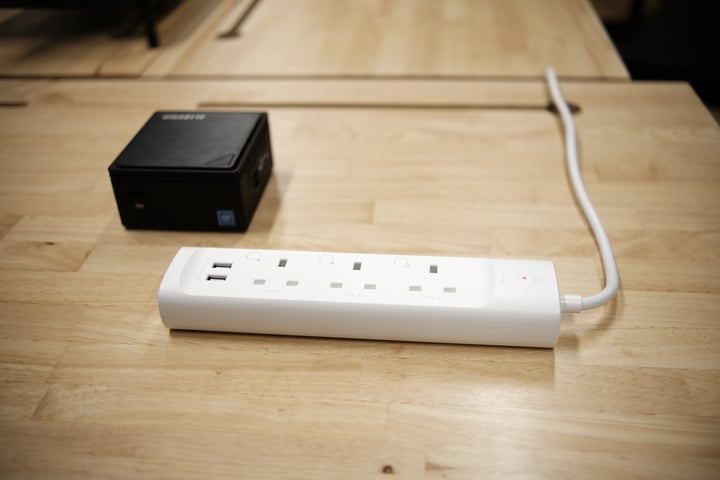
- TP-Link KP303 - 3-socket power strip (recommended)
Purchase from: TP-Link UK (opens in a new tab)
Hardware Setup
What You Need
- Supported Kasa smart plug (HS100, HS110, or KP303)
- WiFi network at the site
- Kasa app on your phone
Connect the Devices
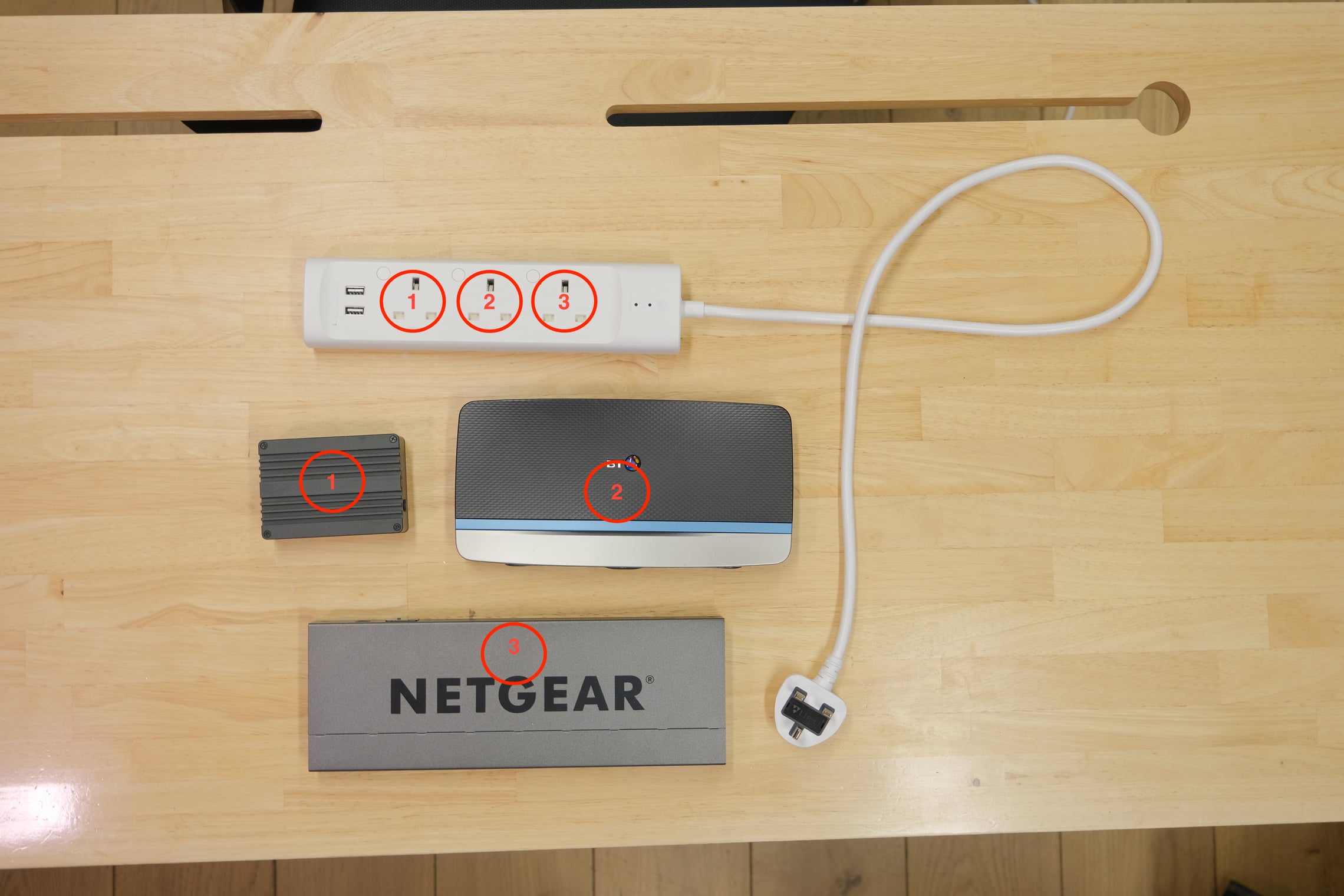
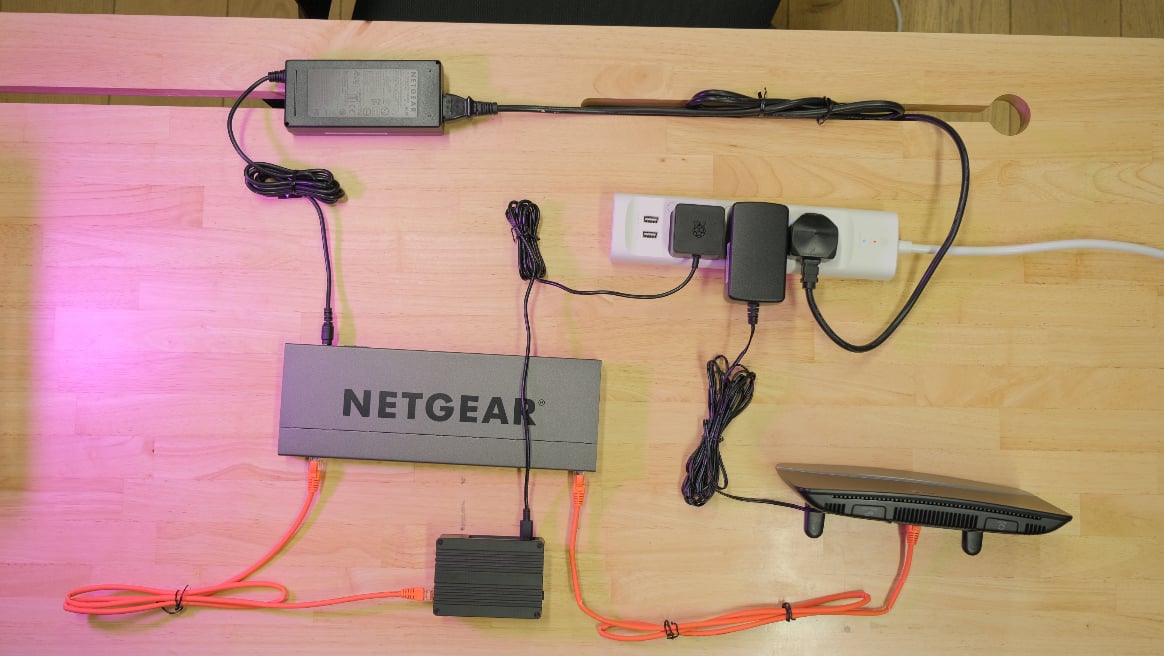
For a KP303 power strip, connect:
| Socket | Device |
|---|---|
| 1 | TetherBox |
| 2 | Router |
| 3 | PoE switch (or other device to restart) |
Example Wired Setup
Configure the Smart Plug
Step 1: Download the Kasa App
- iOS: Download from App Store (opens in a new tab)
- Android: Download from Google Play (opens in a new tab)
Step 2: Create Account and Pair
- Create a Kasa account and verify via email
- Plug the smart plug into a mains socket
- Check that the plug is flashing orange/green (pairing mode)
- On your phone, connect to the smart plug's WiFi network
- In the Kasa app, enter the WiFi password for your site's network
Important: The smart plug must be on the same local network as the TetherBox. You can connect it to either the site's WiFi or the TetherBox's built-in WiFi hotspot.
Configure in TetherX
Step 1: Select the Smart Plug
- Go to Admin → TetherBoxes and select your TetherBox
- Open the Settings tab
- Find the Smart Plug dropdown
- Select your TP-Link device from the list (identified by IP address and MAC)
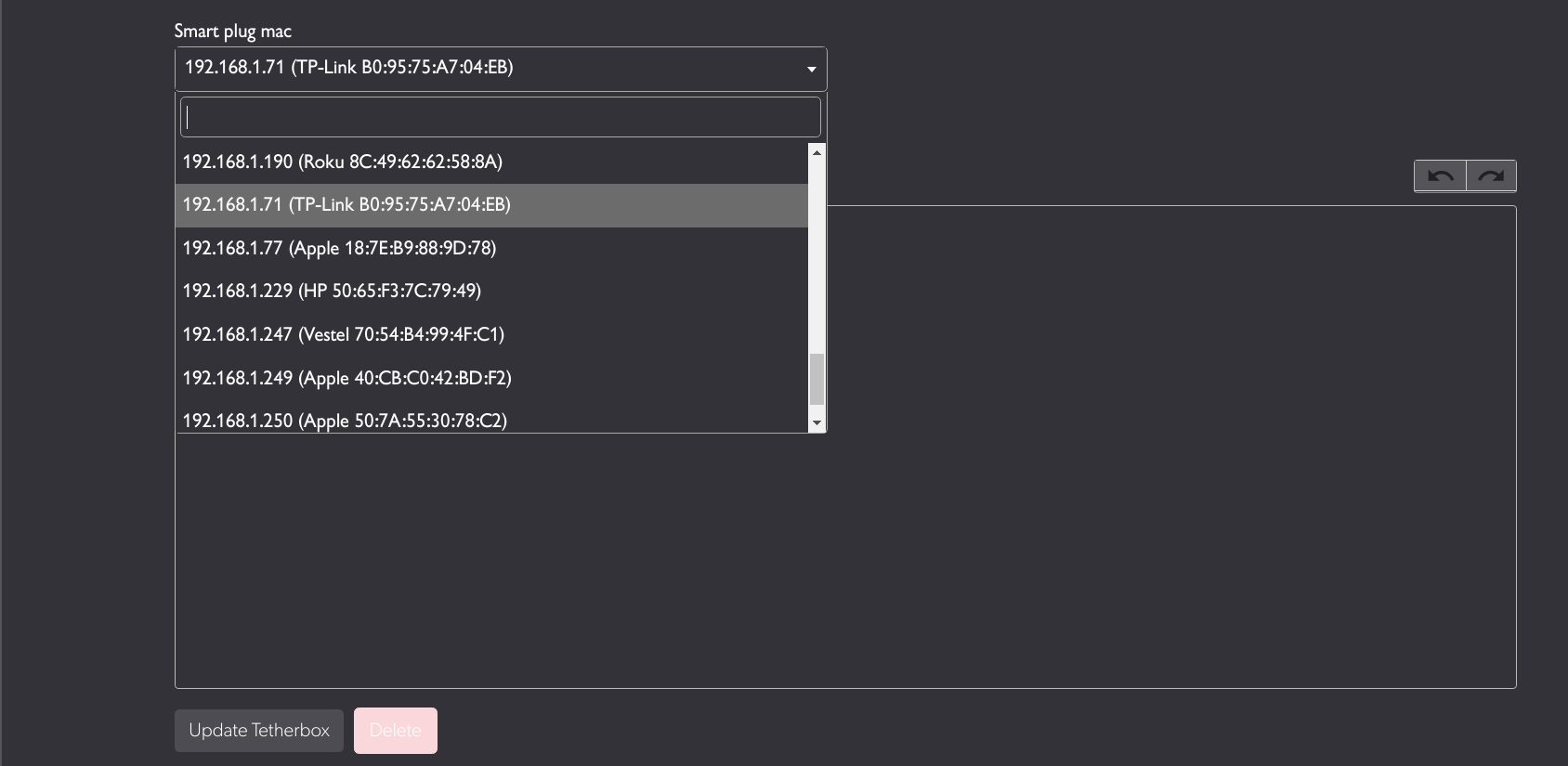
- Click Update TetherBox
Step 2: Verify Connection
Once configured, the Smart Plug Info tab displays the plug status:
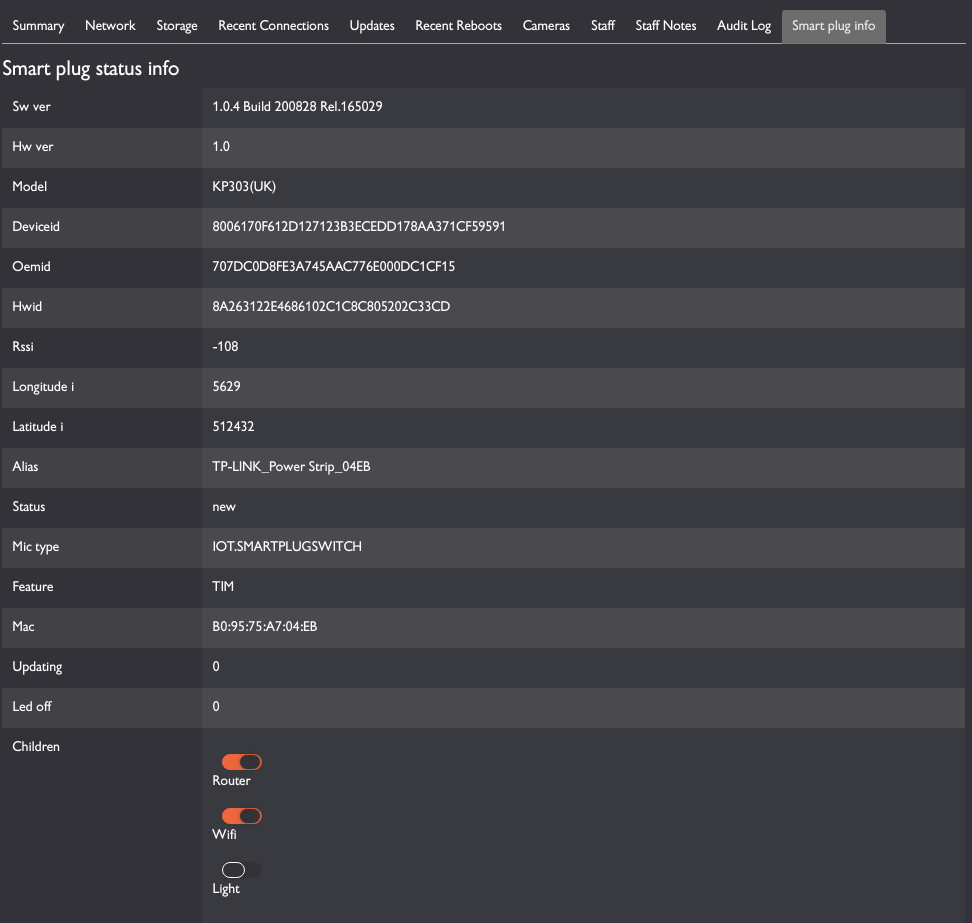
The status page shows:
- Device model and firmware version
- MAC address
- Individual socket toggles (Router, WiFi, Light, etc.)
- Connection status
Troubleshooting
Smart plug not appearing in dropdown:
- Ensure the plug is on the same network as the TetherBox
- Check the plug has completed WiFi setup in the Kasa app
- Try restarting the TetherBox to trigger a network scan
Plug cycling unexpectedly:
- The TetherBox creates schedules to cycle power if it goes offline. This is expected behaviour.
- If the TetherBox is online and working, it updates the schedule to prevent cycling.
Related Articles
- Power Recovery & BIOS Settings - Automatic power-up configuration
- TetherBox Troubleshooting - General troubleshooting guide
- Device Detection - How TetherBox discovers network devices
Referenced in: