

Table of Contents
Reducing False Notifications
Wind, foliage, shadows and rain set off basic pixel motion. These are the ways to filter them out so notifications fire on real incidents, strongest first. Combine them: AI or analytics to classify what matters, masking and Camera Notification Settings to drop what doesn't.
TetherX AI
The most effective filter is TetherX AI running directly on the TetherBox. It identifies people, vehicles, and animals on video, classifies 63 distinct sounds on audio (glass break, smoke alarm, screams, etc.), and produces searchable metadata for every detection - so notifications fire on real incidents rather than wind, foliage, shadows, or rain.
See TetherX AI for full capabilities, hardware requirements, and how to enable it.
Camera Analytics (VCA)
If your TetherBox cannot run TetherX AI, modern cameras with Video Content Analytics or Smart Motion Detection can still filter events at source:
- Filter by object type - only alert on people or vehicles, ignoring animals, shadows and foliage
- Line crossing or zone entry - trigger only when a boundary is crossed
- Filter by direction - alert on movement one way but not the other
- Loitering - detect when someone lingers too long in an area
Configure these in the camera's own web interface, then use Camera Notification Settings to add basic Motion Detected to Always Ignore so only the analytics events come through.
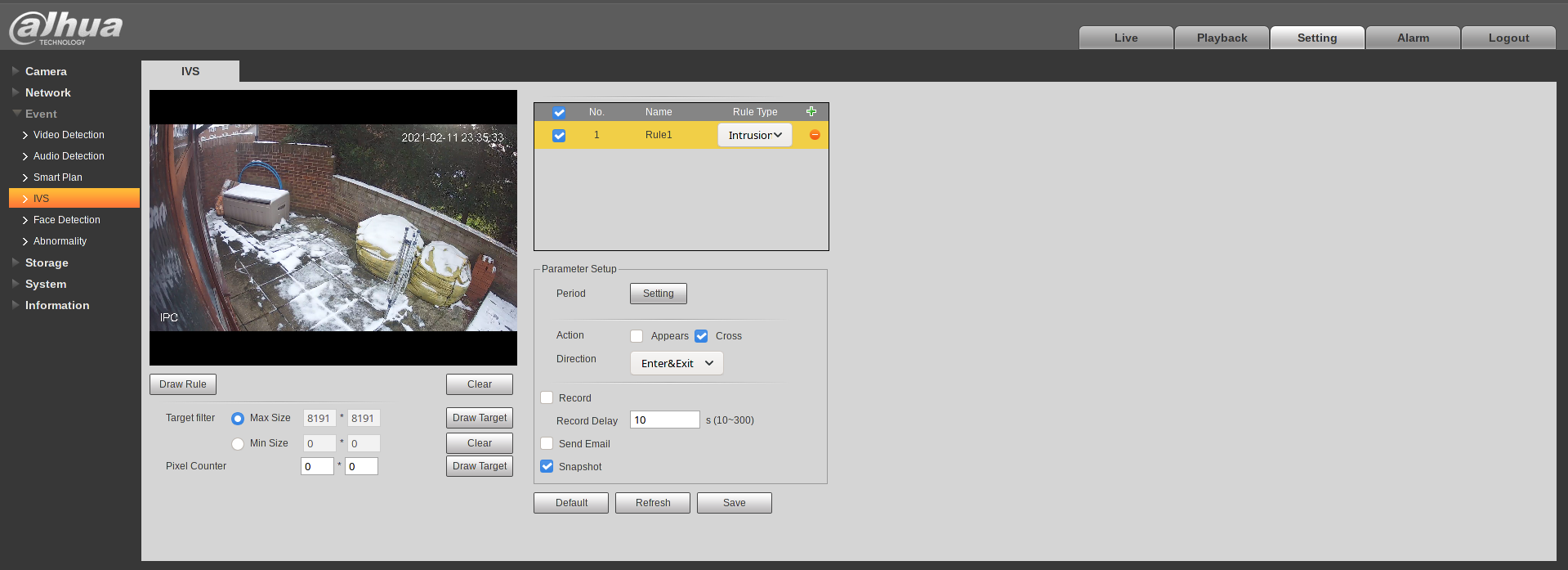
Example: Dahua IVS
Configure under Event → IVS in the camera's web interface:
Tip: VCA availability depends on your camera model and firmware. Check the camera's documentation or ask your integrator.
Camera Masking
Mask out the parts of the picture that cause false events: a busy road past the boundary, a tree in the wind, a flag, a neighbour's doorway.
- Go to Cameras → select the camera → Mask tab
- Draw an area over what to Ignore, or over the only part worth watching and set it to Watch
- Press Apply Mask
Camera Masking covers the drawing tools, naming an area, and what reaches the TetherBox.
Notification Filters
Use Camera Notification Settings to tune which event types reach you, per camera:
- Add frequent false positives to Always Ignore so they appear for nobody and trigger no alerts
- Keep critical alerts in Always (Video Lost, Tamper, Storage Failure) so they send regardless of arming
- Leave routine events in When Armed so they only alert when the site or camera is armed
Related Articles
- Notifications - Configure and arm notifications
- Camera Notification Settings - The per-camera Always / When Armed / Always Ignore controls
- Camera Masking - Drawing the areas a camera watches and the areas it ignores
- TetherX AI - On-box AI classification for video and audio
- VMD Event Types - The complete list of supported event types
Referenced in: